Welcome

You have reached the blog of Keith Elder. Thank you for visiting! Feel free to click the twitter icon to the right and follow me on twitter.

How To Have Visual Studio Load XSD Schemas Automatically

Posted by Keith Elder | Posted in .Net, Visual Studio | Posted on 07-05-2009

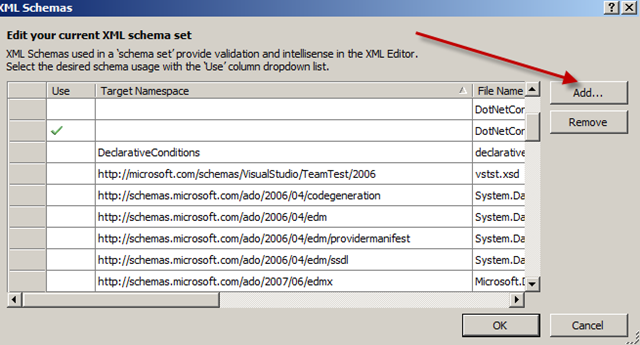
At work we include XSD schemas in our Framework to allow developers to configure their web.config or app.config files and get Intellisense.   This helps to make sure they don’t make mistakes when they are configuring logging or other options for the framework (the same way the .Net Framework provides Intellisense for config files).  The problem is developers had to go to the XML menu of Visual Studio and add the schema by hand each time.  In other words, kind of a pain.  If you’ve never done this before it looks something like this:
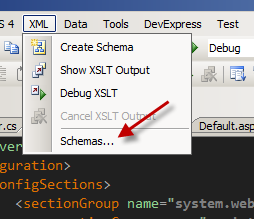
image

image

Each time Visual Studio is opened or closed the schemas that are added have to be re-added.  I wanted to find a fix, not only for me, but the developers using our Framework as well. 

My first thought was to copy our framework schemas out to c:\program files\Microsoft Visual Studio 9.0\xml\Schemas.  But while I was looking around I found a catalog.xml file within that folder.  Interesting I thought.  I opened it up and went AHA here is the answer.

The file looks like this:

   1: <SchemaCatalog xmlns="http://schemas.microsoft.com/xsd/catalog">

   2:   <Schema href="%InstallRoot%/Common7/IDE/Policy/Schemas/TDLSchema.xsd" 

   3:           targetNamespace="http://www.microsoft.com/schema/EnterpriseTemplates/TDLSchema"/>

   4:   <Schema href="%InstallRoot%/Common7/IDE/Policy/Schemas/Policy.xsd" 

   5:           targetNamespace="http://schemas.microsoft.com/VSPolicy/PDLSchema"/>

   6:   <Schema href="%InstallRoot%/xml/schemas/%LCID%/snippetformat.xsd" 

   7:           targetNamespace="http://schemas.microsoft.com/VisualStudio/2005/CodeSnippet"/>

   8:   <Schema href="%InstallRoot%/xml/schemas/%LCID%/vstemplate.xsd"

   9:           targetNamespace="http://schemas.microsoft.com/developer/vstemplate/2005"/>

  10:   <Schema href="%InstallRoot%/xml/schemas/%LCID%/Microsoft.Build.xsd"

  11:           targetNamespace="http://schemas.microsoft.com/developer/msbuild/2003"/>

  12:   <Schema href="%InstallRoot%/xml/schemas/%LCID%/vscontent.xsd"

  13:           targetNamespace="http://schemas.microsoft.com/developer/vscontent/2005"/>

  14:   <Schema href="%InstallRoot%/xml/schemas/%LCID%/customUI.xsd"

  15:           targetNamespace="http://schemas.microsoft.com/office/2006/01/customui" />

  16:   <Schema href="%InstallRoot%/common7/packages/SDM/Schema/SystemDefinitionModel.xsd" 

  17:           targetNamespace="http://schemas.microsoft.com/SystemDefinitionModel/2005/1" /> 

  18:   <Association extension="config" schema="%InstallRoot%/xml/schemas/dotNetConfig20.xsd" condition="%TargetFrameworkVersion% = 2.0" />

  19:   <Association extension="config" schema="%InstallRoot%/xml/schemas/dotNetConfig30.xsd" condition="%TargetFrameworkVersion% = 3.0" />

  20:   <Association extension="config" schema="%InstallRoot%/xml/schemas/dotNetConfig30.xsd" condition="%TargetFrameworkVersion% = 3.0" />

  21: </SchemaCatalog>

I copied one of the Association tags which has the extension=”config” attribute in it and made my own pointing to the location of our XSD file.  Having the ability to set the minimal version is nice as well.  I restarted Visual Studio and BAM, immediate Intellisense in my config file!

If you have been looking for a way to have XSD’s provide you Intellisense for your config files automatically, there you go.  Hope it helps.

Deep Fried Bytes #30: New Ideas for the Web with Thomas Krotkiewski

Posted by Keith Elder | Posted in Podcast | Posted on 21-04-2009


http://deepfriedbytes.com/podcast/episode-30-new-ideas-for-the-web-with-thomas-krotkiewski/


In this episode we went all the way across the big pond to Poland to talk with Thomas Krotkiewski about some interesting work he’s doing pushing the boundary of the web.  For example, imagine a web site without a single navigation menu on the site.  How would you build that and what technologies would you use?  We also discuss how mobile phones are being used in Europe, viral marketing videos, and much more.  

How To Run a ClickOnce Application on Startup

Posted by Keith Elder | Posted in .Net, Smart Clients | Posted on 18-04-2009

When .Net 2.0 launched several years ago, WinForm developers got a brand new technology baked into the framework that allowed WinForm applications to be deployed similar to a Web application.  The technology was called ClickOnce.  ClickOnce has seen a few enhancements since it’s initial release such as the ability to add a desktop icon when an application is installed along with better support for ISVs.  One feature still missing from ClickOnce is to make an application start automatically after login.  Let’s solve this problem.

The Problem

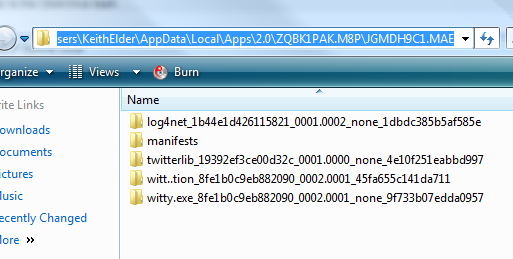
When a ClickOnce application is installed the user doesn’t know the directory location it is installed in on their computer.  Honestly they shouldn’t care.  Not only does the user not know, but the developer doesn’t know either!  ClickOnce applications are installed in random directories on each computer in a hidden folder within the user account called the “AppData” folder.  For example, here is a screen shot where the ClickOnce version of Witty Twitter that I publish on this site is installed on my newly built machine.

image

As you can see it is in a random place and this is the problem because a ClickOnce application doesn’t have a fixed path like c:\program files\somewhere\myapp.exe.  Why?  Well, because the ClickOnce team at Microsoft didn’t build in the ability for Developers to specify a location as to where the application is installed, nor can the user select one.  The purpose of a ClickOnce app is the end-user clicks a URL that ends in .application and the application installs.  Simple, quick, easy.  If the application path was set outside of the user’s account it would require escalated permissions.  A feature of ClickOnce is it allows the user to install an application without administrative permissions on the computer (great for internal apps at companies for example).  Since the ClickOnce apps are installed in the user’s local directory and randomized as to their whereabouts, we can’t place a shortcut URL in the startup folder that points to the executable.

Now some of you might be thinking that a Developer can programmatically figure out the location of the executable and place the shortcut in the Startup folder within the menu, thereby allowing the application to start.  That would be the wrong thing to do.  The reason is ClickOnce applications version themselves as they are installed.  If you took this approach, the next time the application was updated, a new version would be installed and the old version still remains.  Essentially there are two versions on the machine (this is a feature because it allows end-users to roll back to the previous version if they want to in case the latest version of the application is broke).  As you see, creating a shortcut programmatically and placing it in the startup folder on the machine won’t work because it is constantly changing locations.

The Solution

The solution to the problem is actually really simple.  So simple in fact it escapes most.

Remember that a ClickOnce application is launched from a URL ending in .application.  For example, the Witty Twitter application I publish has a URL like the following:

http://keithelder.net/software/witty/witty.application

The .application extension is something your computer knows how to process after the .Net framework gets installed. 

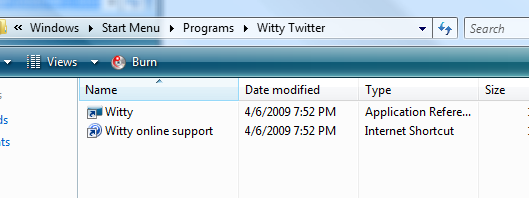
What most developers do is they open up the folder the location where the ClickOnce application installed the shortcut to view the shortcut in notepad.  Here’s an example  using Witty:

image

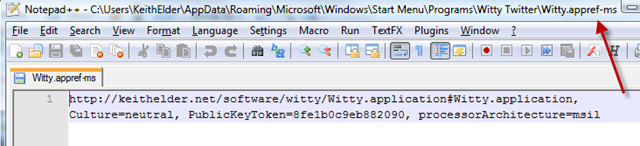
If we view the Witty shortcut in Notepad++ it looks like this:

image

The first thing you’ll notice is the extension of this shortcut is different, it ends with .appref-ms.  So what happens is developers copy this file to the startup folder, but then it doesn’t work in all cases.  It will work on some versions of Windows but not others.

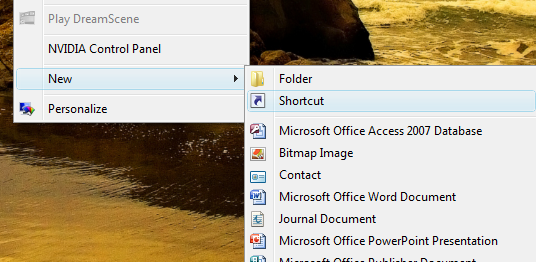
Here’s the fix.  Right click on your desktop and in the menu create a new shortcut.

image

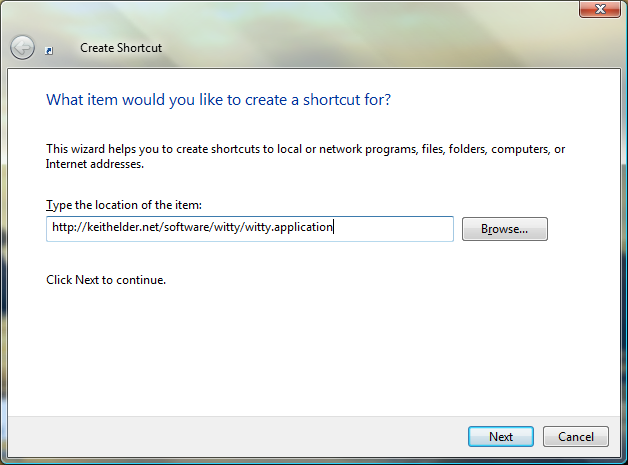
Next, enter the URL of your application.  Here’s a sample using Witty:

image

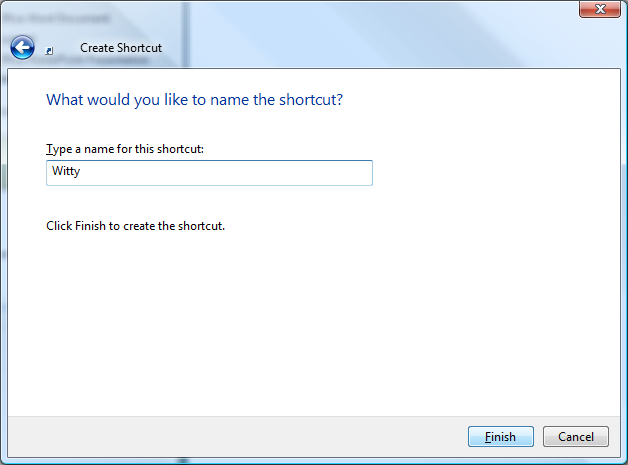
Click next and give it a name:

image

After saved, open the shortcut in notepad and remove everything but the first two lines.  You should have something like this left when you get done:

[InternetShortcut]
URL=http://keithelder.net/software/witty/witty.application

Now you have your shortcut.  Wait, that’s just a standard Internet Shortcut?  Right!  That’s all you need since the application is launched from a URL anyway.  You’ll notice after doing this the new shortcut is showing the default browser’s icon (not your application icon), this is perfectly ok.  Now that you have your file, simply drag and drop the shortcut into the Startup folder.  The next time the computer boots, the application will automatically launch. 

If you are a developer you are home free now because programmatically writing a file to the user’s Startup folder with this information is simple.  In your application you can place a menu option to start the application on startup or not. 

Their are two downsides using the method I can think of.  One, your application shows the default browser’s icon.  Secondly, when the computer launches the browser will open for a split second to launch the application but then it closes (at least that’s been our experience). 

Google Pushing Chrome to Internet Explorer Users

Posted by Keith Elder | Posted in Internet | Posted on 17-04-2009

Just a few minutes ago I went to Google to search for something.  I was using Internet Explorer at the moment because that’s all I had installed within the Virtual Machine I was working in.  When I went to the site, something new and awkward hit me as I started typing in my search.  Here’s what caught my attention.

image

I thought to myself, hmmm, this is kind of interesting.  Then I thought, hmmm, I wonder if Firefox users get the same thing.  Curious, I flipped over to Firefox on my machine and pulled up the page.  Here’s the result.

image

Wow!  Can you say target marketing?  Is this war?  Has Google opened a can of worms by doing this?  This is pretty brazen if you ask me.  Yep, Google has officially declared war on Internet Explorer it seems.  And you know what?  They’ll get away with it.  Thoughts?

Speaking at Tampa Bay, FL .Net User Group

Posted by Keith Elder | Posted in Speaking | Posted on 13-04-2009

Thursday, April 23rd, I’ll be speaking in Tampa Bay, FL at the local .Net User Group.  This time of the year the weather should be great and the fish should be biting.

While in Tampa I’ll be speaking on WCF, you know, that technology that makes the world go around?  Think about where we’d be without services today? Things that make the Internet fun like Twitter, Facebook, Mobile Apps and more would have a very hard time working.  Think about it, they are ALL built on services.  Some don’t look at services as a sexy piece of technology but I do because it is so important.  The next time you open your mobile phone up and search for the nearest gas station you can thank a service.

Services aren’t just just for public facing applications but for companies as well.  Without services, we’d all be resorting to storing all of our data on our PC’s instead of being able to store things in the cloud. Not to mention we’d have that interoperability problem between platforms.  So yes, services are sexy!

In Tampa I’ll be breaking down WCF and showing a melting pot of things that’ll hopefully keep everyone on the edge of their seats.  I’ll also have some Deep Fried Bytes swag to give away.  If you are in the area, I hope to see you there. 

image image

(DFB wall clock and BBQ apron)