
Configuring WCF and IIS 7 With HTTP Bindings and Multiple Host Headers
Posted by Keith Elder | Posted in .Net, WCF | Posted on 28-04-2008
27
If you’ve tried to deploy Windows Communication Foundation (WCF) in a production environment the odds are you have come across this error at one point or another:
This collection already contains an address with scheme http. There can be at most one address per scheme in this collection. Parameter name: item
It is one of those lovely errors that should have been gumped down before it made it into production code but for some reason the developer who wrote it thought they’d sound smarter if they obfuscated the problem to confuse everyone. No fear, I’m hear to clear this up and gump it down to save you endless hours of time.
The Problem
In multiple shared hosting environments or even in the enterprise where load balancers are used it isn’t uncommon to have a single machine answer to multiple host names. This is typically the problem that causes the error above since IIS has more than one http binding configured to answer requests for a given web site. To simulate this I am going to walk you through how to create a fake configuration so your local development machine answers to more than one host name. Then I’ll walk you through how to configure IIS7 to deploy a WCF service to your local machine using one name, and then break the deployment to simulate the error above. After that we’ll fix it.
Here is the overall goal of the walk through.
- Configure our machine to answer multiple host names
- Setup IIS to support our application
- Deploy the sample WCF application
- Add the second host name to break the deployment
- Apply the fix
Requirements
A few months ago I did a walk through on how to configure WCF with multiple bindings. We are going to take that example and deploy it into IIS. I’ll be deploying this solution on Windows Vista SP1 using IIS7. Even if you are using Windows Server 2008 the same setup should be similar. If you haven’t read the previous article on multiple bindings please do so. At the bottom of the article download the sample solution, this is what we’ll be deploying if you want to follow along.
Configuring Extra Host Headers
Edit hosts file to add fake names
More than likely if you are performing this setup on a developer machine for testing you’ll need to create several fake host names for your machine. To do this, open the following file c:\windows\system32\drivers\etc\hosts and add in a few fake names. For this example I’m going to add two additional host names for my machine so it answers to the names of “Elderville” and “WordsOfWisdom”. You can obviously choose what you want. Here are the two entries I am going to add to my hosts file.
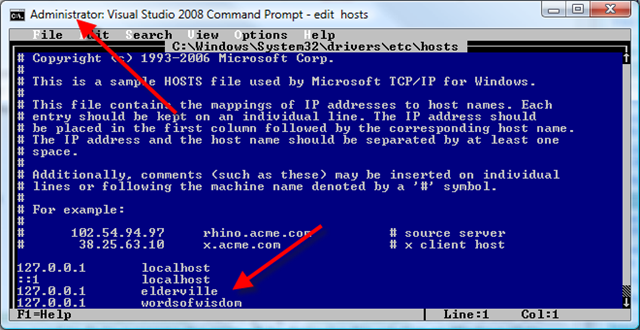
Note that you will need to be administrator to add these lines to this file. The lines added resolve to the localhost IP address which is 127.0.0.1. After these names are added you should be able to ping these host names and get a response.
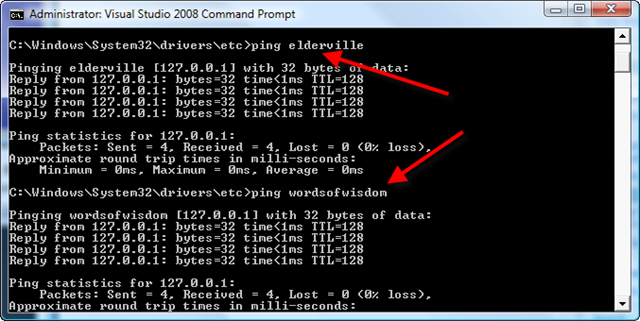
Locally the computer now responds to two additional host names: elderville and wordsofwisdom.
Initial IIS7 Configuration
In order to deploy our sample WCF service we need to have a location pre-configured. Create the following path on your hard drive called C:\WCFTest\wcfservice. Once created, open Internet Information Services manager as administrator and right click the sites folder to add a new web site.
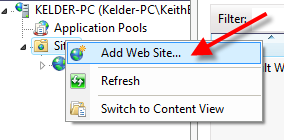
Create a new web site to deploy the WCF service and use the path we just created to deploy the service. I’m going to configure the service to answer using the host name of elderville.

After the site is created, convert the “wcfservice” folder into an application.

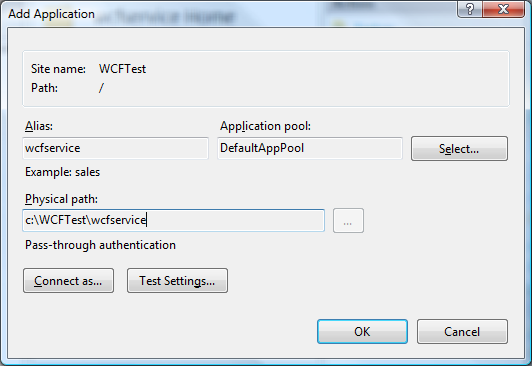
This is as far as we need to go as this moment with IIS. We’ll come back to IIS7 configuration in a bit so leave it open if you are following along. Right now we just want to deploy the service and make sure it works.
Deploying Our Sample WCF Service
Unzip the sample solution and open the solution in Visual Studio 2008. In order to prepare the service for deployment the only change we need to make is to change the address of the endpoints. There are three endpoints this service exposes: WsPlain, Basic and WsSecured. The first endpoint of WsPlain doesn’t have an address listed in the endpoint properties. This means it takes the endpoint address it is deployed within. Each endpoint must have a different address so to get around this we are going to use relative addresses.
Open the WCF Configuration Editor by right clicking the web.config file in the project and change the address of the Basic and WsSecured endpoints to the same name. Here’s what they should look like after you make the change.
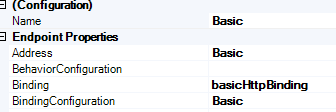
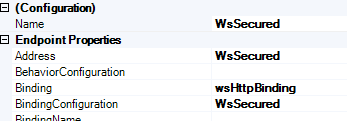
Using relative addresses appends the string in the address field to the end of our service address therefore making a different address location for each endpoint. For example. Since we are deploying our service as http://elderville/wcfservice/service.svc, the basic endpoint address will get converted to http://elderville/wcfservice/service.svc/Basic.
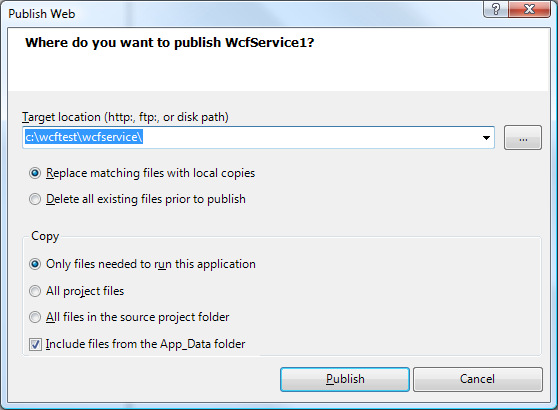
This is the only change that is needed to deploy this service. Now right click the WCF project and click “Publish”. Set the target location to c:\wcftest\wcfservice as seen below and then click publish.
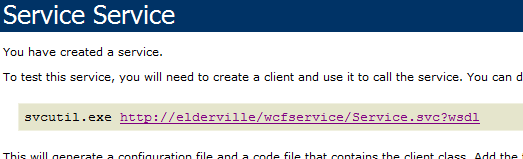
Open Internet Explorer and browse to the following URL: http://elderville/wcfservice/Service.svc. You should see your service page.
Reconfigure Windows Test App
To test the service, remove the existing service location from the Windows test project included in the solution. Open the app.config file and remove the existing WCF client information (leave just the configuration xml elements). Right click on the service reference within the project and paste the new address into the address field then press go. Once it loads the service, press OK to add the reference to the project.
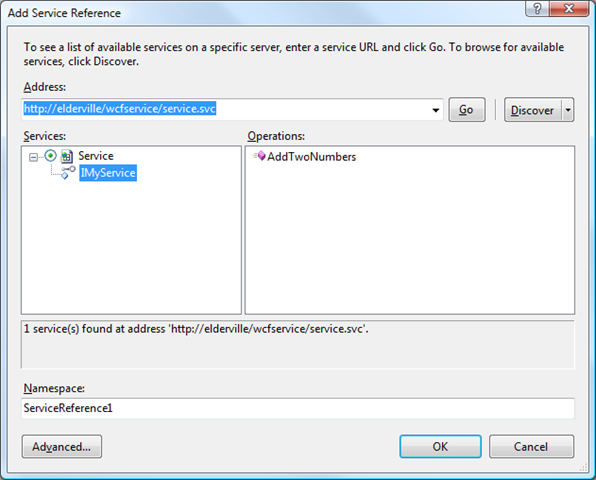
Next launch the Windows Application and click on the binding buttons to see the messages going back and forth with your service.

At this point we’ve just setup IIS7 and deployed a WCF service. Steps 1-3 are now complete. Now let’s apply a more real world scenario to see what happens.
Breaking The Deployment
Based on our original goals we are now going to break this deployment. This is the real heart of this problem as this simulates a more real world example.
To break this deployment we are going to add the second host name to the WCFTest site we created. This is simulating is a shared hosting environment or an enterprise setup where load balancers are used. Since I created “wordsofwisdom” as my secondary host name I am going to add that as an additional HTTP binding on the application. This means my application will now answer to two names.
In the IIS7 configuration manager right click the application and edit the bindings.
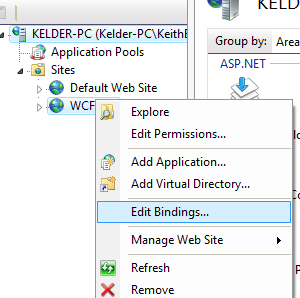
The site’s configured bindings should only have one binding enabled which is the original host name entered when the site was originally configured.

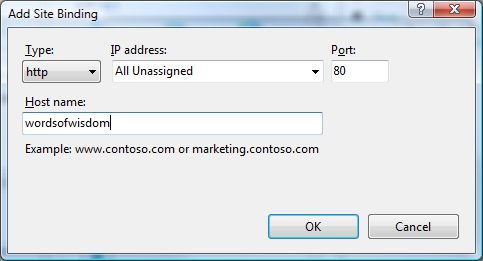
Click add and enter the second host name the computer will answer as. I entered the secondary host name of “wordsofwisdom”.
Press OK and both names should appear within the site bindings list.
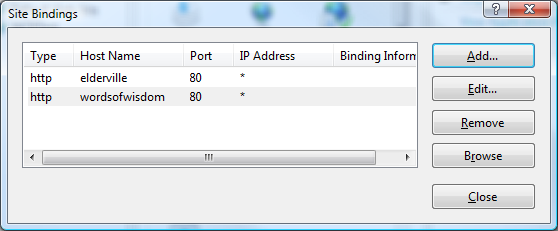
To recap what we just configured, we setup IIS7 to answer requests for both of our host names. Again this isn’t uncommon to have this type of configuration.
Now open the browser and browse to the previous working service. You should see the error now.
This collection already contains an address with scheme http. There can be at most one address per scheme in this collection. Parameter name: item
Since there are two names in the HTTP binding section it doesn’t know which one is the correct name to answer and thus the WCF service throws an exception.
Fixing the Deployment
Depending on the .Net framework you are using the fix is different. If you are using .Net 3.0 the only thing you can do to fix this is write a WCF custom ServiceHostFactory. This work around is a little ugly and not something easy to standardize. My suggestion is to upgrade to .Net 3.5 and take advantage of a new configuration option added in .Net 3.5 to solve this exact problem.
The fix for .Net 3.5 uses a new configuration element called <baseAddressPrefixFilters>.
Represents a collection of configuration elements that specify pass through filters, which provide a mechanism to pick the appropriate Internet Information Services (IIS) bindings when hosting the Windows Communication Foundation (WCF) application in IIS. A prefix filter provides a way for shared hosting providers to specify which URIs are to be used by the service. It enables shared hosts to host multiple applications with different base addresses for the same scheme on the same site.
To apply this fix open the web.config file for the service within Visual Studio and within the <system.serviceModel> tags add the following XML:
<serviceHostingEnvironment>
    <baseAddressPrefixFilters>
        <add prefix="http://elderville/wcfservice"/>
    </baseAddressPrefixFilters>
</serviceHostingEnvironment>
Once these lines are added, redeploy the service and refresh the service in the browser. The error should be gone!
Conclusion
In this walk through we’ve covered a lot! We walked through how to configure IIS7 and deploy an existing WCF service. We also looked at the scenario that causes the error that a lot of developers run into when deploying WCF services in various environments. The moral of this story is be safe and go ahead and plan on adding the baseAddressPrefixFilters tag into your web.config files from now on since you never really know how administrators will configure their servers.
I hope you enjoyed this walk through.