Featured Post

VncViewer & VncServer

I have been playing with a couple of new apps for quite awhile but thought I would share it with the rest of you. VNC is a an open source package that allows one to display a remote Linux, Windows (and other platforms) to their local workstation. Example, you want get to your desktop at the office but...

Read More

Register for MSDN Roadshow Coming to Hattiesburg Sept 19th

Posted by Keith Elder | Posted in .Net | Posted on 04-09-2008

0

image If you are in the surrounding Hattiesburg, MS area (Jackson, Mobile, Gulfport, Biloxi, New Orleans, Slidell, Vicksburg, Meridian, Laurel, etc) there is a free MSDN event coming to Hattiesburg on September 19th called the MSDN Southern Fried Roadshow.

The event is a four hour event with Developer Evangelist Glen Gordon and Architect Evangelist Chad Brooks.  Hattiesburg is the last stop of a five city tour they are doing throughout the South.

What is an MSDN Roadshow?

For those that have never gone to an event like this, this is where Microsoft sends their Evangelist out into the heart of America to make sure the development community is familiar with the latest and greatest software.  Think of it as free training!  There is no sales pitch, their job is to simply tell you about the latest releases and answer questions.  Larger events are done in bigger cities typically earlier in the year like Chicago, Detroit, etc.  Now is your chance to get the same material locally in your own area.  Definitely worth the price of admission!

Agenda

  • See what’s new in Windows Server 2008:  Hypervisor Technology, IIS7, and others. 
  • SQL 2008 is also packed with goodies for Developers;  see the geospatial capabilities as well as the LINQ enhancements. 
  • Myriad of enhancements that come with the .Net Framework 3.5!
  • REST with WCF, ADO.NET Data Services, and ASP.NET MVC

More information can be found on Glen Gordon’s blog.

Quick Facts

  • Cost – Free
  • Time – 8:00 – 12:00
  • Food – Yes, food will be provided
  • Giveaways – Yes!
  • Where – William Carey University, 498 Tuscan Avenue, Thomas Business Building, Kresge Room, Hattiesburg, MS 39401
  • Registration Required – Yes
Register For Event

Walk Through Installing Google Chrome and First Launch Experience

Posted by Keith Elder | Posted in Internet | Posted on 02-09-2008

1

Google Chrome just hit the press.  Here is a quick walk through of the installation on Windows.

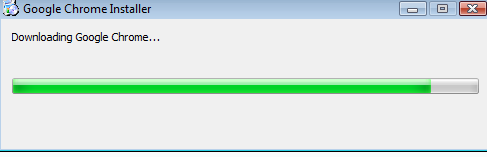
Installing Google Chrome

image

The installer had a problem because it wasn’t run as an administrator. 

image

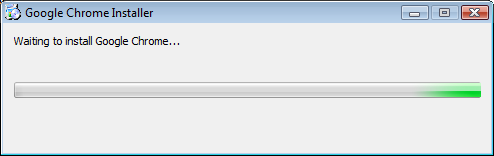
Once the install was restarted as an admin, things went much better.

image 

image

image

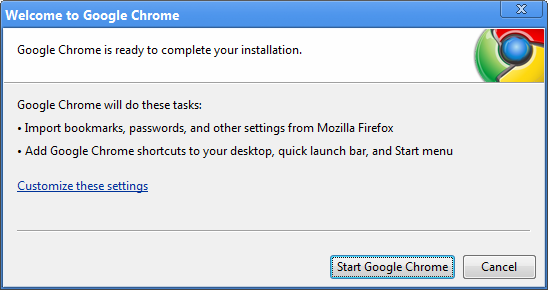
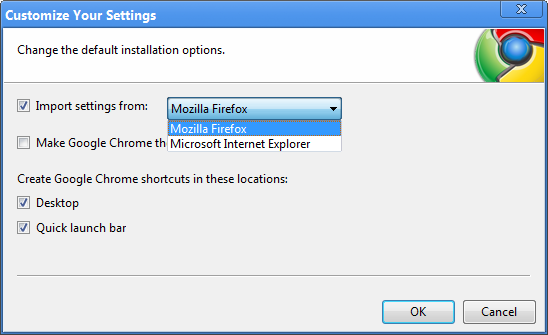
Pressing customize settings brings up the ability to import settings from Firefox and Internet Explorer.

image

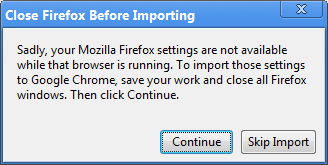
If Firefox is running it can’t import Firefox settings so I skipped this step.

image

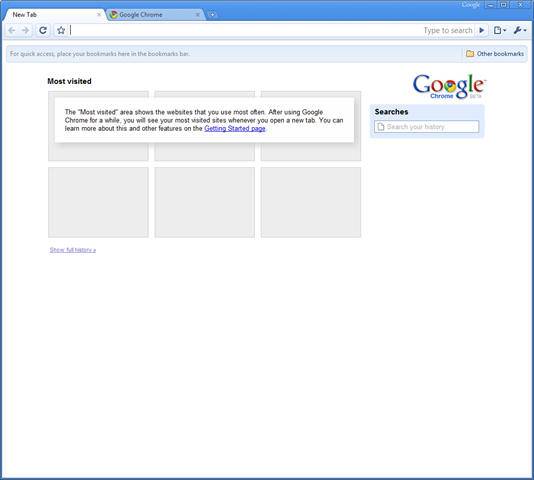
First Google Chrome Launch

image

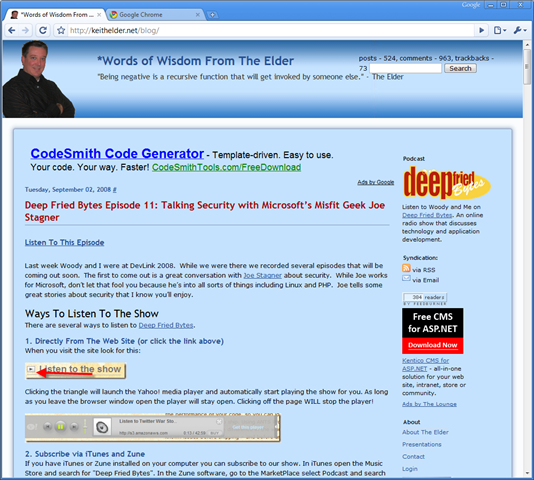
Like any blogger I had to pull up my own web site to see how it faired.  Pretty much looks the same as others.  That’s good.

image

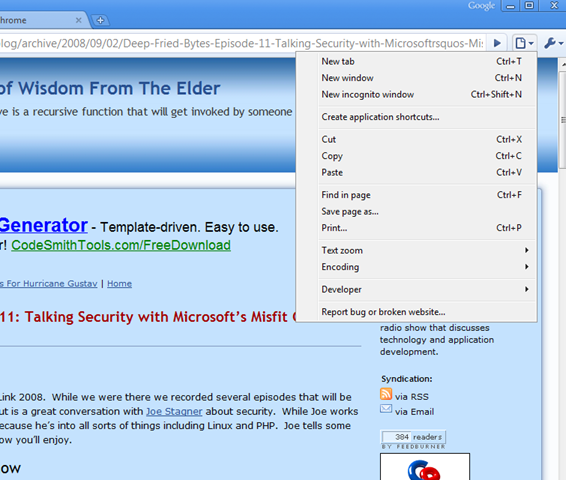
The top of the browser appears to be the same as other browsers.  A navigation bar, back buttons, etc.  There was a little document drop down that caught my attention.  Note to self, hot key Ctrl+Shift+N for incognito mode.

image

Incognito mode has a sneaky icon at the top and some disclaimers about what it does or doesn’t do.

image

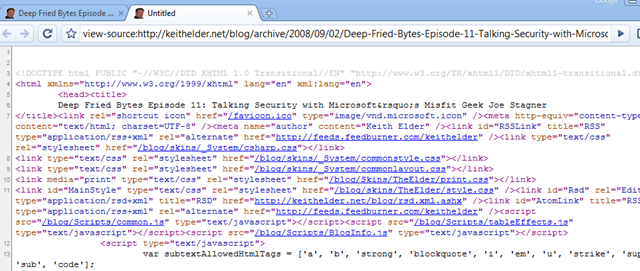
I decided to check out how it rendered source of a web page from the developer menu.  It put the source code into a new tab.  Syntax highlighting and line numbers make it nice.  I personally prefer any window that opens open into a tab.  That’s just me.

image

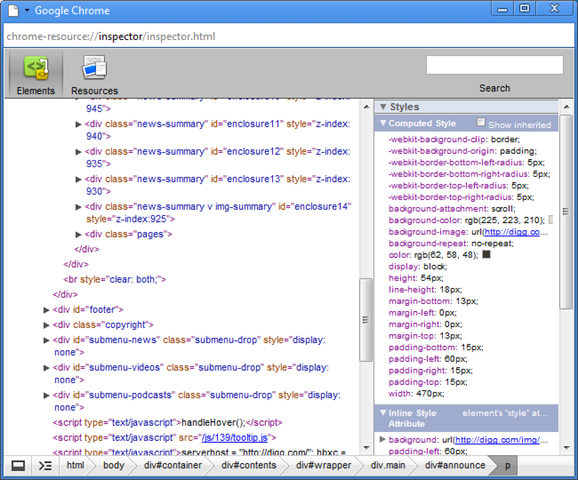
There is also a menu option when you right click that says “Inspect Element”.  Here’s what that produced.  Pretty nice.

image

Settings

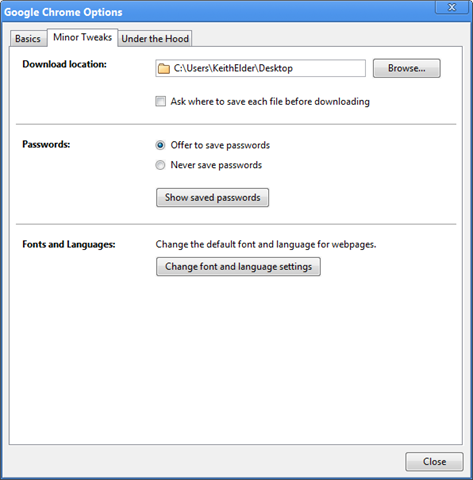
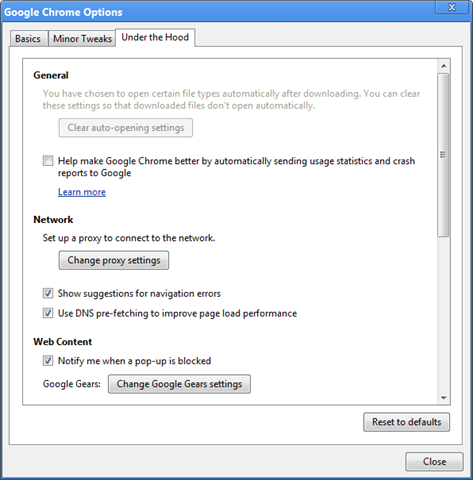
Here is a quick tour of the settings windows.  Not hundreds of options but it seems to be fairly complete.

image

image

image

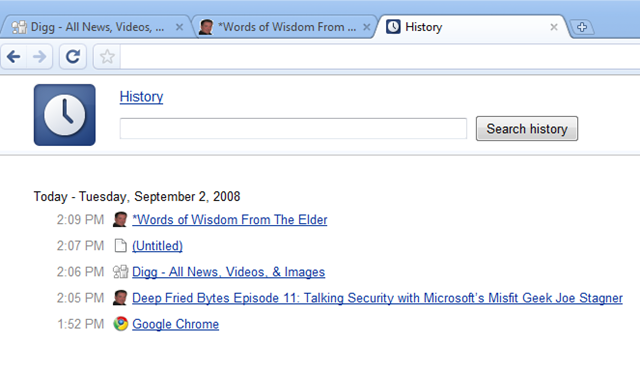
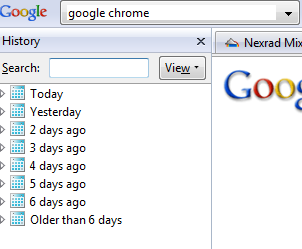
Imagine that, searchable history from a company that mainly does search (nothing new, just a different look to it).  My first thoughts were I liked having the history appear in a separate tab. 

image

For those curious, here is a Firefox comparison of history.

image

Acid 3 Test

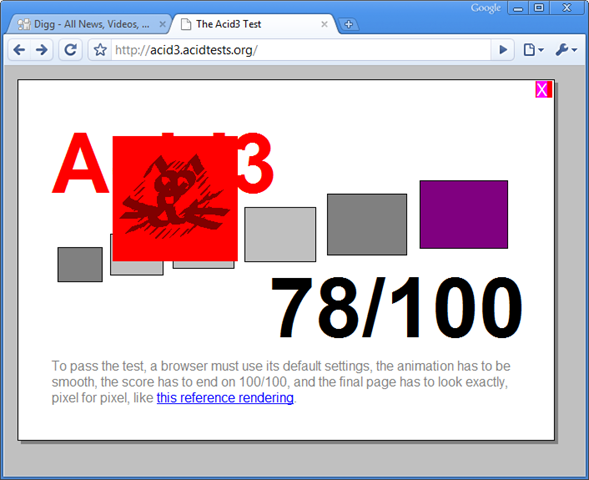
For those web developers out there, here is the Acid3 test for Chrome. 

image

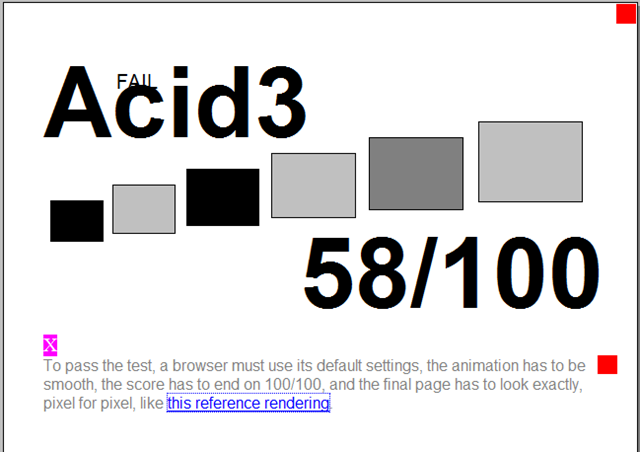
For fun I ran Firefox 3 through the Acid3 test as well.  Winner?  Chrome.

image


First Impression

Google Chrome appears to be a complete browser.  The initial download was 475KB.  I like the feature of being able to tear off a tab into a new window but I didn’t find a way to put the tab back to where it was to start with.  In the few other pages I visited with Chrome they appeared to render them all the same. 

There really isn’t much “chrome” to Chrome but it seems to provide a nice browsing experience and is snappy.  One question though, where is the Google Toolbar? :)

UPDATE
Tear Off Tabs:  I finally figured out that tabs can be placed back.  You have to click on the tab itself, not the window as I was trying to do initially.

Deep Fried Bytes Episode 11: Talking Security with Microsoft’s Misfit Geek Joe Stagner

Posted by Keith Elder | Posted in Podcast | Posted on 02-09-2008

0

Listen To This Episode


Last week Woody and I were at DevLink 2008.  While we were there we recorded several episodes that will be coming out soon.  The first to come out is a great conversation with Joe Stagner about security.  While Joe works for Microsoft, don’t let that fool you because he’s into all sorts of things including Linux and PHP.  Joe tells some great stories about security that I know you’ll enjoy.

Ways To Listen To The Show

There are several ways to listen to Deep Fried Bytes.

1. Directly From The Web Site (or click the link above)

When you visit the site look for this:

Clicking the triangle will launch the Yahoo! media player and automatically start playing the show for you. As long as you leave the browser window open the player will stay open. Clicking off the page WILL stop the player!

2. Subscribe via iTunes and Zune

If you have iTunes or Zune installed on your computer you can subscribe to our show. In iTunes open the Music Store and search for “Deep Fried Bytes”. In the Zune software, go to the MarketPlace select Podcast and search for “Deep Fried Bytes” to subscribe to the show. You can also click either of the two icons below to automatically subscribe to the show if you have iTunes or Zune installed.

Subscribe via iTunes Store Subcribe via Zune Market Place

3. Subscribe to RSS Feed

To stay current and up to date with the show, subscribe to the site’s RSS Feed. If you don’t know about RSS feeds you can read more here: http://en.wikipedia.org/wiki/RSS_(file_format)

If you already have an RSS reader installed and setup, click the feed icon below to grab our news feed.

Subscribe to our podcast!