A reader of this blog sent me an email asking the following question:
“I have an XSD that I am required to use to export my company’s data. How can I use that XSD and return data to them in a web method? I should be able to return a data set with the information formatted the way the XSD defines but I have no idea how to do that. Any ideas would save me a ton of time and grief!”
Turns out this is a really good question, and I think one a lot of developers struggle with primarily because the majority of developers are scared of XSD schemas. Hopefully I can change that. An XML Schema is really simple and it is your friend.
What is an XSD or Xml Schema Definition?
An XML Schema describes the structure of an XML document.
That’s it, see, it isn’t that hard after all!
As a developer think of an XSD the same way you would when creating business rules to validate objects before storing them into a database. Some items in objects cannot be null, some can. Some need to have their data formatted (email address for example) and others need to not exceed certain lengths, etc.
When dealing with an XML document, we need to apply the same type of rules and this is where the XSD comes in. Once we have an XSD to describe an XML document we can guarantee any XML data we receive conforms to these rules.
Ok, enough intro, let’s get coding.
The Schema
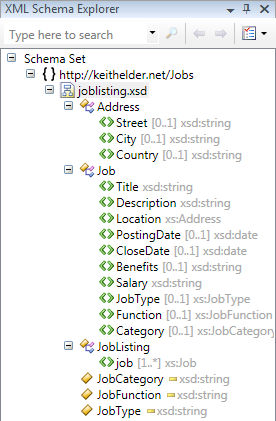
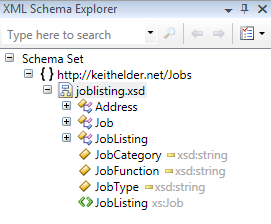
In the case of the reader’s question, an XSD schema already existed. To save time, I’ve taken then general idea of the schema I was sent and slimmed it down for simplicity sakes. The schema represents an XML document that will contain job listings. Here is a view of the schema from the schema explorer in Visual Studio as well as the schema itself (again slimmed down).
1: <xsd:schema
2: xmlns:xsd="http://www.w3.org/2001/XMLSchema"
3: targetNamespace="http://keithelder.net/Jobs"
4: xmlns:xs="http://keithelder.net/Jobs">
5:
6: <xsd:complexType name="JobListing">
7: <xsd:sequence>
8: <xsd:element maxOccurs="unbounded" minOccurs="1" name="job" type="xs:Job" />
9: </xsd:sequence>
10: </xsd:complexType>
11:
12: <xsd:complexType name="Job">
13: <xsd:sequence>
14: <xsd:element maxOccurs="1" minOccurs="1" name="Title" type="xsd:string"></xsd:element>
15: <xsd:element maxOccurs="1" minOccurs="1" name="Description" type="xsd:string"></xsd:element>
16: <xsd:element maxOccurs="1" minOccurs="1" name="Location" type="xs:Address"></xsd:element>
17: <xsd:element minOccurs="0" maxOccurs="1" name="PostingDate" type="xsd:date"></xsd:element>
18: <xsd:element minOccurs="0" maxOccurs="1" name="CloseDate" type="xsd:date"></xsd:element>
19: <xsd:element minOccurs="0" maxOccurs="1" name="Benefits" type="xsd:string"></xsd:element>
20: <xsd:element maxOccurs="1" minOccurs="1" name="Salary" type="xsd:string"></xsd:element>
21: <xsd:element maxOccurs="1" minOccurs="0" name="JobType" type="xs:JobType"></xsd:element>
22: <xsd:element minOccurs="0" maxOccurs="1" name="Function" type="xs:JobFunction"></xsd:element>
23: <xsd:element minOccurs="0" maxOccurs="1" name="Category" type="xs:JobCategory"></xsd:element>
24: </xsd:sequence>
25: </xsd:complexType>
26:
27: <xsd:simpleType name="JobType">
28: <xsd:restriction base="xsd:string">
29: <xsd:enumeration value="full-time"></xsd:enumeration>
30: <xsd:enumeration value="part-time"></xsd:enumeration>
31: <xsd:enumeration value="contractor"></xsd:enumeration>
32: </xsd:restriction>
33: </xsd:simpleType>
34:
35: <xsd:complexType name="Address">
36: <xsd:sequence>
37: <xsd:element minOccurs="0" maxOccurs="1" name="Street" type="xsd:string"></xsd:element>
38: <xsd:element minOccurs="0" maxOccurs="1" name="City" type="xsd:string"> </xsd:element>
39: <xsd:element minOccurs="0" maxOccurs="1" name="Country" type="xsd:string"></xsd:element>
40: </xsd:sequence>
41: </xsd:complexType>
42:
43: <xsd:simpleType name="JobCategory">
44: <xsd:restriction base="xsd:string">
45: <xsd:enumeration value="Automotive"/>
46: <xsd:enumeration value="Banking"/>
47: <xsd:enumeration value="Construction"/>
48: <xsd:enumeration value="Internet"/>
49: <xsd:enumeration value="Retail"/>
50: <xsd:enumeration value="Services"/>
51: </xsd:restriction>
52: </xsd:simpleType>
53:
54: <xsd:simpleType name="JobFunction">
55: <xsd:restriction base="xsd:string">
56: <xsd:enumeration value="Chief Peanut Butter Spreader"/>
57: <xsd:enumeration value="I ran the whole ship"/>
58: <xsd:enumeration value="Other"/>
59: </xsd:restriction>
60: </xsd:simpleType>
61: </xsd:schema>
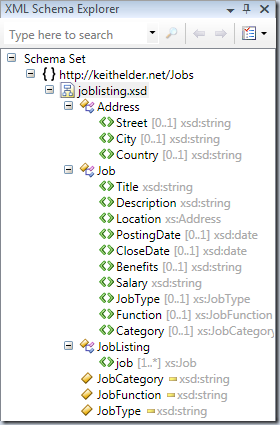
Once we have a schema defined like this we can generate code to be used for a service. We have a tool at our disposal that is available within the Visual Studio Command Prompt called XSD.exe. This executable does a lot of things but one thing it can do is generate code from an XML Schema Definition.
When generating from the XSD file I was sent there was a problem with it. Here is the walk through of that story so you can follow along.
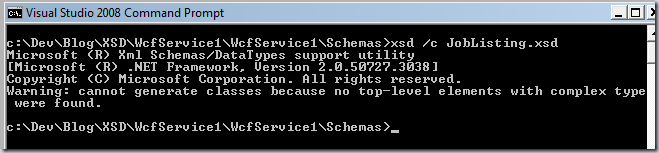
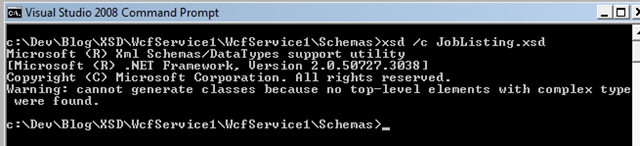
When I first tried this on the reader’s original XSD I got an error:
Warning: cannot generate classes because no top-level elements with complex type were found.
What does this mean? Well, look at the screen shot of the XML Schema Explorer above. Do you see the <> green icons? Well those represent an XML Element. An element is a fancy name for an XML tag like: <Cows>Bramar</Cows>
Let me roll this up and take another screen shot so you can start to see the problem (i have to hit my magic number of 12 screen shots anyway 🙂 ).
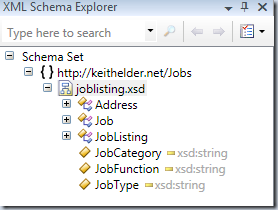
See the problem? There isn’t an element in this schema (no green <> thingy). What this means is we have a schema which just lists complex types of elements and enumerations. There isn’t any “xml” in this schema. The fix is simple though. Add an element to the schema.
1: <xsd:element name="JobListing" type="xs:Job" />
Now we have a green thingy icon which means this XSD contains at least one element. Basically think of the JobListing element as the root element.
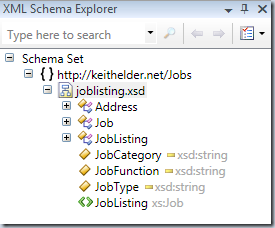
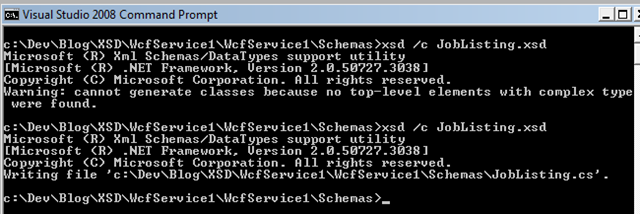
Now that we have an element we can generate a C# class file from this XSD:
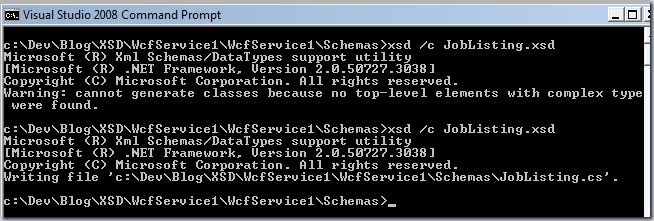
The code generated is about 350 lines so I’m not going to include it in the article. There are some nice things happening for us when the C# classes are generated using xsd.exe. For starters the enumerations in the XSD are turned into C# enumerations. The classes are marked serializable and they have the appropriate XML attributes on the properties to serialize these objects into XML. This is a good thing since it means we didn’t have to create it. Code generation is your friend. Now that we have C# objects we can serialize these to XML easily.
The Service
The first thing we need to do is create the WCF service. For this example I chose to create a WCF Service Application in Visual Studio 2008. After the project is initialized, the first thing we need to do is define the contract for the service. In other words, what is coming in and going back out. Since we have generated our code using the XSD utility we are going to use the XmlSerializer with our service. The reason is this will make sure our XML formatted the way we intended. While we are at it, I’ve made the service a RESTful type of service. Here is the contract.
1: [ServiceContract]
2: public interface IJobService
3: {
4:
5: [OperationContract]
6: [XmlSerializerFormat]
7: [System.ServiceModel.Web.WebGet(UriTemplate="/jobs/{type}", RequestFormat=WebMessageFormat.Xml)]
8: List<Job> GetJobListings(string type);
9: }
The contract above has one method GetJobListings(). This method has two additional attributes. One, the attribute to mark the method to serialize using the XmlSerializer and two the attribute to turn the method into a RESTful service. In other words our service can be accessed like this:
http://localhost/service.svc/jobs/full-time
Now that the contract is setup, we just need a class to implement this contract on. Here’s a quick and dirty implementation.
1: public class Service1 : IJobService
2: {
3:
4: #region IJobService Members
5:
6: public List<Job> GetJobListings(string type)
7: {
8: return GetJobs();
9: }
10:
11: private static List<Job> GetJobs()
12: {
13: var jobs = new List<Job>();
14: jobs.Add(new Job { JobType= JobType.parttime, Category = JobCategory.Banking, Benefits= "You are on your own.", Description="I did something" });
15: jobs.Add(new Job { JobType= JobType.fulltime, Category = JobCategory.Banking, Benefits= "You get something." });
16: jobs.Add(new Job { JobType= JobType.contractor, Category = JobCategory.Banking, Benefits= "Times are tuff, deal with it." });
17: jobs.Add(new Job { JobType= JobType.fulltime, Category = JobCategory.Banking, Benefits= "How does $700 billion sound?" });
18: return jobs;
19: }
20: #endregion
21: }
Now all we have left is to get this working is to configure WCF to support our RESTful implementation. In order to do this we are going to use the webHttpBinding. Here is the WCF configuration to implement our RESTful service.
1: <system.serviceModel>
2: <bindings>
3: <webHttpBinding>
4: <binding name="rest" />
5: </webHttpBinding>
6: </bindings>
7: <services>
8: <service behaviorConfiguration="WcfService1.Service1Behavior"
9: name="WcfService1.Service1">
10: <endpoint address="mex" binding="mexHttpBinding" name="wsdl"
11: contract="IMetadataExchange" />
12: <endpoint address="" behaviorConfiguration="NewBehavior" binding="webHttpBinding"
13: bindingConfiguration="" name="web" contract="WcfService1.IJobService" />
14: </service>
15: </services>
16: <behaviors>
17: <endpointBehaviors>
18: <behavior name="NewBehavior">
19: <webHttp />
20: </behavior>
21: </endpointBehaviors>
22: <serviceBehaviors>
23: <behavior name="WcfService1.Service1Behavior">
24: <serviceMetadata httpGetEnabled="true" />
25: <serviceDebug includeExceptionDetailInFaults="false" />
26: </behavior>
27: </serviceBehaviors>
28: </behaviors>
29: </system.serviceModel>
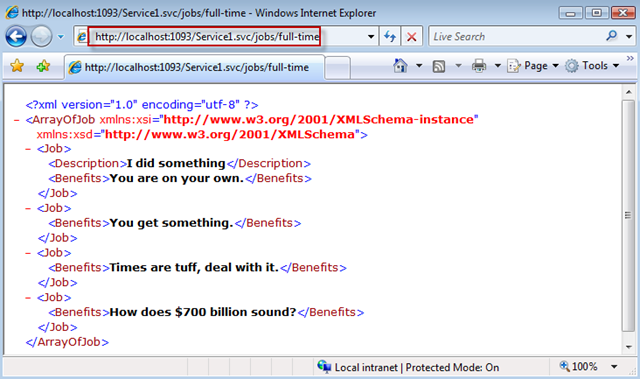
That’s it, we are all setup. Now all we have to do is launch the service and browse to the URL we outlined earlier to get our results.
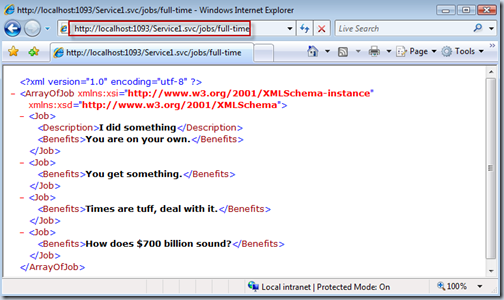
This may seem like a lot of steps but it really isn’t. I encourage you to take this example and play with it. You can download the solution below.
Download Solution WcfService.zip