
Fun with Live Mesh, Live Tools, Windows Mobile and Home Server
Posted by Keith Elder | Posted in Home Server, Live, Mobile Devices | Posted on 01-11-2008
 Just getting back from PDC 2008 I have to say the coolest non-developer thing your grandmother or mom can use that got an upgrade was Live Mesh. I really like Live Mesh for a lot of reasons. First and foremost it solves a real problem by syncing data, accessing devices and connecting devices together. We are only starting to see the beginning that is the vision of the Live platform, trust me, there is a lot more to come. Live Mesh in particular opens the door for a brand new world of cross platform peer to peer data syncing and more. Secondly it provides a rich API through the Live Framework whereby developers can integrate their applications with it. Let’s play around with Live Mesh, Live Tools and a few other things to see what kind of fun we can have.
What problems does Live Mesh solve? Well for starters it solves the problem of syncing files. Jeff Blankenburg wrote a post last week that gave five reasons you should give Live Mesh a try. This week at PDC we can add two more reasons to Jeff’s list:
- Mobile Client
- Mac Client
If you want to play with the Windows Mobile client for Live Mesh, to get started read the post on the team’s blog here. Note that Windows Mobile 6 or 6.1 is required. Once installed on your mobile phone you’ll get a “Mobile Pictures” folder in your mesh. You can also sync other folders from your mesh with your mobile phone. Here’s what the mobile client looks like on Windows Mobile.
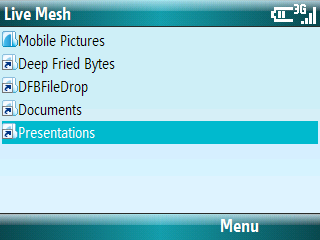
Once I installed the mobile client I picked up my Blackjack II and took a quick picture of my dogs taking a nap in the floor of my office.
Within a few seconds the photo I took on my phone showed up on my desktop. From phone to computer and computer to phone is now incredibly easy. Once the photo was on my machine I could open it up and edit it and drop it into Live Writer, yet another great tool from the Live team. Are you starting to get the picture?

The story starts to really unfold when you start combining Live Mesh and other Live tools such as Windows Live Photo Gallery Beta and Windows Home Server!
Here are the pieces of the puzzle:
- Live Mesh – storage and peer to peer syncing from the cloud from various clients such as Windows, Mobile and Mac
- Windows Live – a collection of various for free tools that are purposed for the cloud
- Windows Home Server – the home appliance that let’s you access your data internally and externally as well as provides a powerful backup mechanism
Think of it like this. If I take a picture on my windows mobile phone sure I want it to sync that photo with my desktop but I also want to make sure I have that photo backed up and also persisted to permanent backup to the cloud in case something happens (home server drives fail etc). I also want this to happen without me having to *think* about it. You might ask , “Doesn’t Live Mesh hold all of my data though?”. The answer to that is no.
Currently we get only 5GB of storage with Live Mesh. Really this isn’t bad but I would never expect Microsoft to hold the world’s data. However, there is this product called “Groove” that does great peer to peer replication among other things. See the dog fooding going on now?
If you exceed the 5GB of data Live Mesh gives you, it immediately switches to peer to peer. This means you can sync way more data than 5GB.
I mentioned Live Photo Gallery and Home Server so let me start with Home Server. Integrating Live Mesh with Home Server is where the story starts to get even more interesting. At PDC2008 we got to see some of that story and where it is headed. Nothing has been released yet for Home Server but Brendan Grant, who we interviewed in Deep Fried Bytes Episode 12 on Home Server, showed part of the Live Mesh story with Home Server at PDC 2008.
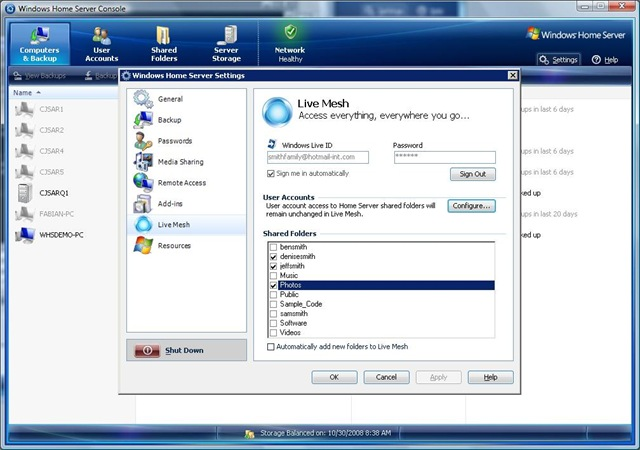
In other words there will be a direct Live Mesh plug in for Home Server. Right now I am cheating and installed Live Mesh on Home Server directly to sync my Mobile Pictures to see how this will play out once the real plug in is released. Since I run KeepVault on Home Server, an unlimited backup cloud storage add on for Home Server, I now have this kind of story. It goes something like this:
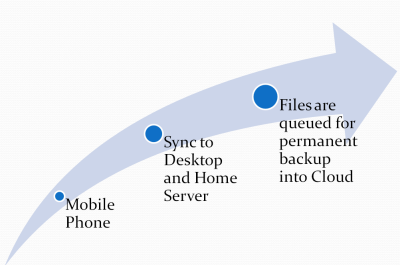
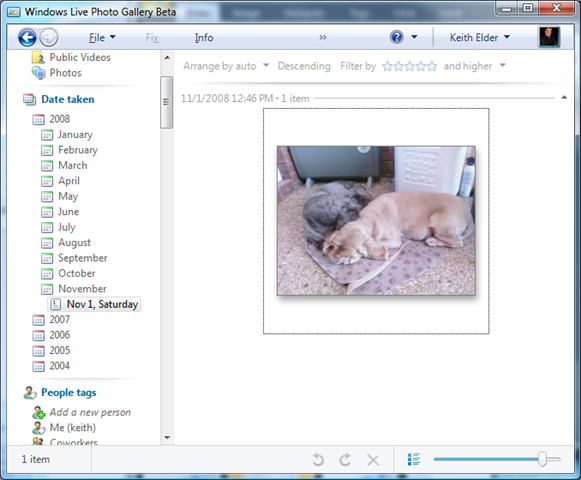
Your next question may be “How do I view the pictures?”. Answer: Windows Live Photo Gallery (which is currently part of the http://download.live.com tools). To make the Photo Gallery and Home Server story work I have set my import folder directly to the Home Server share.

Since all of my photos are imported directly to Home Server (which then gets backed up to the cloud) it means any photos that home server syncs with my mobile phone are immediately visible via Windows Live Photo Gallery. This means I can tag, edit, fix, or delete all from one central place. Here is the picture above with Simon and Max shown in Windows Live Photo Gallery:
Are you starting to see the picture (no pun intended)? We are only seeing a small portion of things that Live* can do for us. This is why I am “super excited” because this technology is something my Mom, my sister’s, and certainly my wife will use. Today we use Live Mesh to sync GBs of audio we record for http://deepfriedbytes.com with Live Mesh. Woody and I never have to worry about keeping track of where things are at, it just works.
If you haven’t started to play around with this stuff, give it a try.
DISCLAIMER
Read RTA’s Techie Blog post before you decide to install Live Mesh directly onto your Home Server. Again, this is going to be supported, we just don’t know when yet.