Welcome

You have reached the blog of Keith Elder. Thank you for visiting! Feel free to click the twitter icon to the right and follow me on twitter.

Bing – It Does Way More Than You Think

Posted by Keith Elder | Posted in Internet, MVP10 | Posted on 21-02-2010

No doubt you’ve heard Bing marketed as the “Decision Engine”.  I’ve watched and used Bing over the past several months and the one thing that has impressed me the most is how quickly it has been advancing.  If your perception is that Bing is only good to find answers to programming questions you couldn’t be more wrong.  It does so much more and we are only seeing the beginning. 

Cards

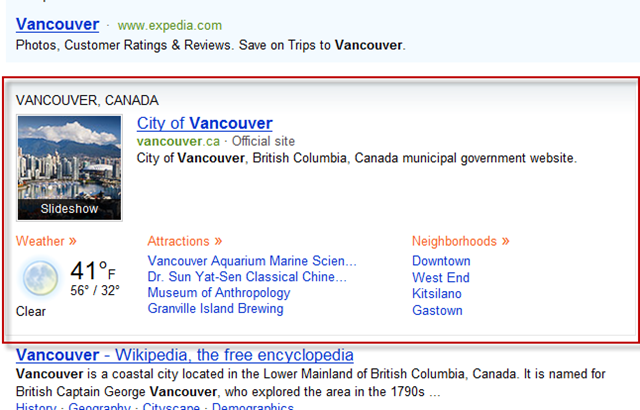
Right now the Winter 2010 Olympics are underway.  A lot of people are no doubt traveling to Vancouver, Canada for the event.  If you go to Bing and type in Vancouver you will see something presented on the results page that is quiet interesting.  Below the ads is a box which has a culmination of things in it like pictures, weather, attractions and so on.  Now you may think that someone at Microsoft went in and created this section on the site.  Here is what I am referring to.
image

(red box is mine)

This highlighted section is called a “Card” and it is completely auto generated. In other words, no one at Microsoft created that section of the page. Everything is automatic.  These cards are created entirely by the decision engine.  If you see this in the future now you know what it is.

Maps – There’s an App For That

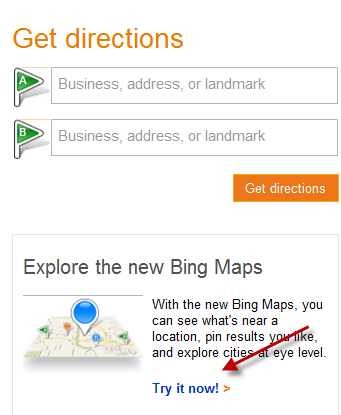
Most people know that Bing has maps support.  But what many don’t know is Bing is doing all sorts of neat things to take online maps to a new level.  One way Bing is doing this is using Silverlight to bring a much richer experience to the online map experience.  When you visit http://bing.com/maps look for the following on the page:
image

When you click “Try it now” the user interface will be switched from HTML/JavaScript to Silverlight.  This opens up more possibilities for a richer online experience.  Let’s look at some of the things you may not be aware of when you turn this feature on.

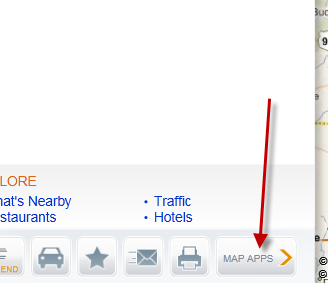
Once the new version is loaded look toward the bottom of the screen on the left.  There is a “MAP APPS” link.
image

This is where things start to get real interesting. Like for example you are able to view maps of the recent Haiti earthquake before an after.

image

I’ll let you explore around on your own but one of my favorite apps is from Microsoft Research.  The app is called “Destination maps”. The app is simple, you enter an address and highlight around the area of the location.  Press go, and viola! You have a map to your party, anniversary or bar mitzvah.  For example, let’s say I was going to host a crawfish boil at my house for friends. I go to this app and enter my home address.  I then select the surrounding area to cover enough roads leading to my house.
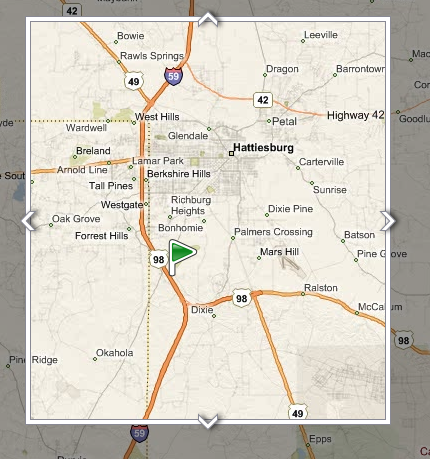
image

Once satisfied press the continue button and Bing will generate your map in a variety of styles.
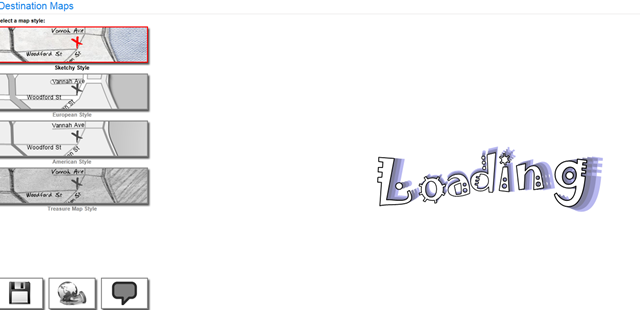
image

Once done your map will appear.  In this example I left the hand drawing version.
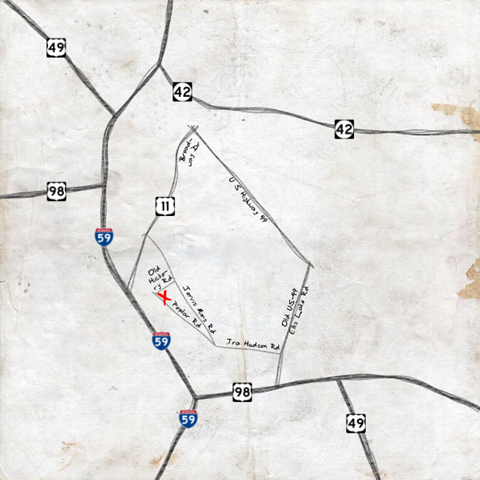
image

I have to say this is really accurate for a simple map to get someone to my house.  And it sure beats drawing it by hand.  There are other applications as well, play around and see which one you like the best.

Future Innovation

Does augmented reality sound interesting to you?  Bing is doing a lot of work in capturing data and adding even more data to put on top of that data.  The best thing to do is just show you.  Check out Blaise Aguera’s talk at TED located at http://www.ted.com/talks/blaise_aguera.html.  It is only about eight minutes long and you won’t be disappointed. 
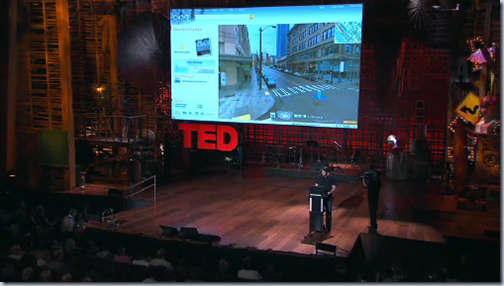
image

Hopefully this gives you just enough reason to look into some of the other Bing features I haven’t even mentioned.  The best way is to just head on over and start playing.

Visual Studio Tutorial – Part 2 – Our First Project

Posted by Keith Elder | Posted in MVP10, Visual Studio | Posted on 21-02-2010

After over 6,600 views on the previous Visual Studio tutorial and multiple comments like “When is part two coming out?” I finally find the time to record and produce part two of this series.  This version is done in HD which provides a much better experience for those watching.  Be sure if you watch you watch from the YouTube website in full screen in HD.

Part two walks through how to create one’s first project and runs the project using the debugger.

Deep Fried Bytes Ringtones!

Posted by Keith Elder | Posted in MVP10, Podcast | Posted on 13-02-2010

A lot of our listeners recognize the Deep Fried Bytes theme song.  We thought we’d allow you to carry it with you wherever you go.  Thus, we made DFB Ringtones!  Not only will this impress your friends but it could also score you a free t-shirt, sticker, mug or other prizes if we hear it at a community event.  Here’s how to get it onto your phone.

Download the ringtones for your specific device:

DFB Ringtone for the iPhone
DFB Ringtone for Android and Windows Mobile

Windows Mobile Setup

Download the file to your computer and then plug in your phone.  Then copy the file to your phone and change the device in settings to use the new ringtone.

Android Setup

Download the file to your computer and then follow the steps in this article to get the ringtone on your phone.

iPhone Setup

Download the iPhone version of the ringtone (ends in .m4r).  Save it to a permanent location on your computer.  Then plug your iPhone into your computer and let iTunes launch.

In iTunes go to the File->Add File to Library…

image

Once added the ringtone will show up in iTunes under “Ringtones”.

image 

Select your iPhone in iTunes and click on the Ringtones tab.

image

Make sure the ringtone is going to sync with your iPhone and press the “Sync” button at the bottom.

After the sync, go to Settings->Sounds->Ringtone on the iPhone and select the Deep Fried Bytes ringtone.

How To Spend Millions and Fail During the Super Bowl

Posted by Keith Elder | Posted in Funny Stuff | Posted on 07-02-2010

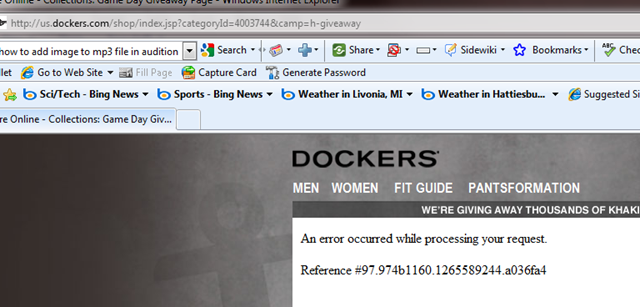
Easy. Use Java. Just saying.

image

image

Actually this is a FAIL for Dockers not Java. It doesn’t matter which technology you use you can scale it (it just may cost more than others). You think they would have at least done performance testing on this before they released it. Wait, Dockers makes pants, so they obviously outsourced this. Ok, a complete FAIL for this consulting firm that got paid no telling what to build this and then after all was said and done it couldn’t even collect data.

Is Good on the iPhone a Blackberry Killer?

Posted by Keith Elder | Posted in Mobile Devices | Posted on 07-02-2010

IMG_0053 You’ve no doubt heard of using a Blackberry to access email at work.  But did you know there is another company that supports a variety of devices including Windows Mobile and now the iPhone?  The company is called Good Technology and they recently released their enterprise email messaging application for the iPhone.  I’ve been using this for several weeks and it is time to answer the question:

“Is this ‘Good’ enough to replace a Blackberry?”

I meant to take some screenshots when I first installed this several weeks ago but I forgot so when I recently had a password issue with the application I had to reinstall it.  I’ve posted the photos of the application on Flickr.

View the application installation photos here: http://www.flickr.com/photos/keithelder/sets/72157623371032880/ 

The Good (no pun intended)

For light email use I have found Good’s iPhone application has served its purpose well.  The application syncs three things from the corporate Exchange server: Inbox, Contacts, and Calendar.

The really nice thing about the Good application on the iPhone as compared to using it on Windows Mobile is the application is sandboxed.  The Good software installed on a Windows Mobile device will commandeer the entire phone by replacing the home screen and virtually taking over the entire phone.  It is horrible, absolutely the worst thing I’ve ever installed on a Windows Mobile phone.  Conversely on the iPhone the application is sandboxed because, well, that’s how Apple made it.  I like this as it means I really have true work / personal data separation on one device.  If I want to read personal email, I open the built-in mail app on the iPhone and if I want to read work email I just launch the Good application on the iPhone. 

Of course there are some drawbacks to this sandboxing.  It means the application cannot alert you for appointments and those types of things.  This is where Good uses the push technology built into the iPhone platform.  But even this doesn’t work so well.

If you get an email at work the Good icon on the application (similar to the mail, phone, text messaging and Facebook applications) will put a number in the corner indicating you have new email.  

The application also allows one to search the global address book. This is handy when the name of the person in the office is known but not their phone number.  It is a little sluggish but it works.

The user interface for checking email, calendar and contacts should feel really familiar as they are modeled after the applications that come on the phone by default.  Thus there is nothing new to learn. 

The Bad

Since the Good application is sandboxed and not allowed to run in the background the application obviously must be started each and every time you want to do anything.  This is the first and one of the most major drawbacks of Good on the iPhone, the startup time.  How long? How about 20 seconds to a minute depending? 

Not only is the application load time incredibly slow but after it loads it must then catch up and sync ALL of the email you’ve already read, checked and deleted from your desktop.  If you get as much email as I do at work this can push the total time to just peek at work email to almost a minute and that is before you actually do anything!  Personally I disagree with Good’s approach on this.  I understand what they are doing, they are doing guaranteed message delivery for the device.  However, when the application starts it should just sync with the current Inbox and leave it at that.  What is on the server is all I care about.

As far as email goes the only email folder that can be viewed is the Inbox, at least as of this version. That means if email is stored in other folders those messages will not be able to be read. For those using Exchange server side filtering this may be a problem. The latest update does finally at least show the other folders on the server but that is it. 

There are very few settings available in the preferences screen. The latest update finally added the ability to edit the email signature. 

IMG_0069

There are no ways to get various alerts.  Say a high priority email comes in.  Since the application isn’t running the only thing Good can do is push the message to the phone. The Blackberry for example supports various alerts on different mailbox folders. 

I mentioned earlier the application is sandboxed and this makes the application less usable than say a Blackberry which is always on.  For example if you have an appointment Good gets the reminder via a push notification. All that is said is “Good Event Reminder”.  This means the applications must then be launched to see the appointment which in turns means it is going to take anywhere from 20 seconds to a minute depending on the last time the application was launched. 

The Verdict

It depends. If you check work email occasionally or plan on very light use then Good for the iPhone may be something to consider if your company already has a Good server installed.  Of course this begs the question then do you really need to be connected if you have such little use.  Your team leader will have to decide.

For heavy Blackberry users I don’t expect them to give up their devices in favor of using Good on the iPhone…. ever.

I work at home so I am not wandering around the office to meetings and having hallway conversations where I could lose track of time and be late for a meeting.  I need to keep track of things when I am away from my desk for lunch, on vacation or at a conference.  Other than that I am already connected.  Now, if I was in the office everyday I would use my Windows Mobile Blackjack II device which talks directly to the Exchange server or a Blackberry. 

Hope this helps if you are considering jumping the shark over to the iPhone just because you thought you could now stay connected to the office using Good.  Instead of calling it “staying connected” I would call it “sporadic connectedness”.