Welcome

You have reached the blog of Keith Elder. Thank you for visiting! Feel free to click the twitter icon to the right and follow me on twitter.

How To Add Holidays to Outlook 2007 Calendar

Posted by Keith Elder | Posted in Howtos, Windows | Posted on 23-01-2008

20

After installing Outlook I have found the default installation does not automatically add holidays to the calendar.  When scheduling appointments and tasks it is important to know the holidays.  For example, a husband can find himself in a lot of trouble if he schedules a dinner with a client on Valentine’s Day.  I have also found instances where users entered the holidays by hand into their calendars.  In either case holidays can be added to Outlook with just a few clicks of the mouse.  Here are the steps you need to take to enable holidays in your Outlook calendar.

Step 1: Tools->Options

In the top menu of Outlook select Tools then Options in the menu.

image

Step 2:  Select Calendar Options

image

Step 3:  Select Add Holidays

In the middle of the next screen select “Add Holidays”.

image

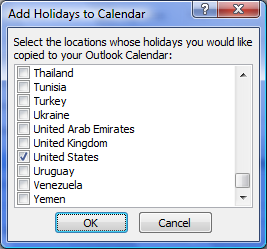
Step 4:  Select Country

image

Press OK.

Step 5: Option Screen

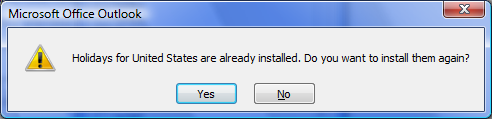
You may or may not get the following screen.

image

If this screen appears just press “Yes”.

Step 6:  Wait for Holidays to Be Added

image

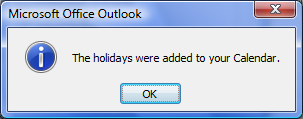
Step 7:  Done

image

Press OK to close the other screens that are open.

Step 8:  Check Calendar

After this you should be able to visit a date that is known to be a holiday like Valentine’s Day for example.  The holiday will be displayed at the top of the calendar in Outlook as shown below.

image

Geek Dinner with Sara Ford in Hattiesburg Feb 4th

Posted by Keith Elder | Posted in .Net, Friends, Speaking | Posted on 22-01-2008

13

image Monday February 4th, 2008, we will be having a geek dinner in Hattiesburg, Ms with special guest Sara Ford from Microsoft.  Sara is the Program Manager for Codeplex.Com which serves as a hosting ground for open source projects.  Sara is originally from Mississippi so we are glad to have her back in the area and taking time out of her traveling schedule to join us.   Living in Seattle she doesn’t get to come back home often so this is a very special occasion to have her be able to join us.  Sara has already blogged about the dinner (she beat me to it) and I know she is excited to join us.  The following information should help to answer any and all questions.  If I fail to cover all the bases either add a comment or send me an email via the contact link on the site. 

When

Date: February 4th, 2008
Time: 7:00 PM

Where

Chesterfield’s Restaurant – Chesterfield’s is a staple restaurant in Hattiesburg that serves great food along with great service.  For those at the University without transportation it is conveniently located within walking distance at the intersection of Hardy and Hwy 49.   

Directions

Driving from:

the north (via I-59 S)
the south (via I-59 N)
the east (via US-98 W)
the west (via US-49 E / SR-42)

Who Can Attend?

The short answer is anyone that considers themselves a technologist or a geek.  Doug Turnure, Microsoft Developer Evangelist for Mississippi, and Chad Brooks, Microsoft Architect Evangelist for Mississippi, will also be joining us.  Doug and Chad know there stuff and can answer all types of questions and are great contacts to have.  We also aren’t discriminating based on location so if you are from Alabama, Louisiana or nearby states in driving distance of Hattiesburg feel free to join us.

What If I’m an Open Source Person, Can I Still Go?

Absolutely!  Sara would love to talk to you more than the rest of since it is her job to stay in touch with the open source community!  Remember that a geek dinner isn’t about a division of interest; it is about talking to the community, learning, and building long lasting friendships.  Don’t worry; you will not be the only open source person there.  I’m also a carrying card member as is Sara.

What is a Geek Dinner?

Although there is no official definition a geek dinner is a time for technologist, enthusiasts, developers, architects and others in the community to gather and talk about technology.  That’s it, plain and simple.  It doesn’t mean you are part of a sacred group or cult, it just means you were hungry on a Monday night, needed some place to eat and there were a bunch of people that like technology like yourself eating at this one place so you decided to join them.

How Do I RSVP?

Easy.  Just add a comment to this blog entry or send an email using the contact link on the site stating your intentions of attending and I’ll start to gather a head count from that.

Who Pays For Dinner?

Since there is a 2008 launch event during the day in Jackson, Ms, Microsoft has graciously agreed to sponsor part or all of the dinner depending on the number of attendees.  Note: Not all geek dinners are sponsored so this is really appreciated!

Received RSVPs

If your name appears in the following list I have received your RSVP.  If not, please re-send.

Sara Ford – Microsoft Program Manager for http://codeplex.com
Me – Quicken Loans
Shane Walters – Singletree Technologies
Doug Turnure – Microsoft
Chad Brooks – Microsoft
John Weathersby, Jr. – Open Source Software Institute Executive Director
Wayne Walters – Assistant Professor, USM, School of Computing
Stan Burton – President & CEO, Burton Computer
Sean Brace – Systems Engineer, Howard Industries
Jean Gourd – Visiting Assistant Professor, USM, School of Computing
Keith Parish – Software Engineer
Ryan Duclos – Program Director for LANUG, Proficient Consultant
Shara Walters – Singletree Technologies
Bill Booth – Pan American Life
Tim Hampton – Student
Aubrey Cote – Forte Online

UPDATE 1/25/2008 10:12 AM

There was a previous problem submitting comments as well as through the contact page in Internet Explorer.  This explains why people that emailed said they couldn’t post comments.  Sorry, this is now fixed.  In the mean time search for the site is disabled.  I will get it back on soon.

I Migrated To Google Apps

Posted by Keith Elder | Posted in Internet | Posted on 19-01-2008

6

Several months ago Hanselman wrote an article about moving his family over to Google Apps.  Even before that one of my fellow team members had moved his email to Google Apps.  Keeping all of this in the back of my mind I started to think about doing the same.  A few weeks ago I decided to give it a try and today I just moved my wife’s domain over as well.  I’m sure you are wondering why so let’s explore that among other things.

Why?

IMAP, How Do I Love Thee, Let Me Count The Ways
I have to be honest and say that I would have never considered switching to Google Apps if Gmail only supported POP3.  When I first started using a computer I realized the benefit of IMAP early on and never looked back.  POP3 for lack of better words was dead to me.  It wasn’t until recent though that Gmail started supporting IMAP.  IMAP has always made sense for me because it was more versatile than POP3.  I’ve always kept my email on the server instead of “popping” it down locally because it provided the most flexibility allowing me to view and read email from a client, web, shell (ssh), and or mobile device. 

The nice thing about IMAP is if an email is read let’s say on a mobile phone and is moved to a folder, when viewed on another client that action is automatically reflected.  This cuts down on reading email twice and simplifies things.  IMAP support also means the server backs up the email and email can be pre-processed before it gets to the client.  Let’s say for example you have a mobile hand held device and are subscribed to 10 mailing lists.  Imagine the amount of email those lists would generate on your phone thereby cluttering up your Inbox.  With IMAP and a technique in the Unix world known as “Procmail”, this becomes really simple.  A simple procmail rule can process an incoming message and automatically take an action to move it to a specified folder on the server.  This means that if your Outlook or Thunderbird isn’t running email is still sorted.  Note:  For those that are using Gmail, when you create a “Filter” this is essentially the same thing as a procmail rule.

With IMAP support in place for Gmail, awesome spam filtering, 6GBs of email, web-based email and mobile phone support (IMAP and web-based mobile email) it was time to revisit the thought of switching to Google Apps.

Gmail’s IMAP Support

Now that we’ve established my dying love for IMAP how does Gmail’s IMAP support stack up?  The short answer is very good and enough to make me switch.  Before jumping ship and switching to Google Apps I started playing with my standard Gmail account I’ve had for years in Outlook using IMAP.  For years I’ve been using Courier-IMAP and there are a few quirks using it with Outlook.  For one, when you delete an item in Outlook, Outlook doesn’t move it to the Trash folder automatically.  It merely marks it for deletion.  I really really really don’t like this behavior and if you search the Internet you’ll find others don’t as well.  However, it is the way it is. 

Using Gmail’s IMAP I noticed immediately when I deleted an email in Outlook it disappeared from the Inbox.  Ah, the proper behavior!   But, where did the email go?  This is where things start to depart from the normal IMAP server.  To understand what is happening you have have to understand how Gmail works.  Gmail works on a labeling.  Email that makes it into the “Inbox” is actually labeled “Inbox” but really lives in another folder commonly referred to as the archive.  As a matter of fact, all email in Gmail lives in one gigantic archive.  This is why when a Gmail POP3 account initially connects it downloads ALL of the mail you have ever received (unless you tell it not too when you enable the feature). 

If you are logged into Gmail and click on a label on the left side you are not viewing a folder but rather a pre-defined search.  When labels are clicked Gmail is simply searching your archive for the labeled emails.  Thus the concept of folders within Gmail doesn’t exist.  This is important to understand since IMAP email is based on folders and the ability to organize email into folders.  To bring us back full circle, when an email is “archived” within Gmail or deleted from Outlook using IMAP the “Inbox” label is merely removed.   The email is still in the archive.  For example I just searched my email for the word comment.  You can see the word “Inbox” beside these emails because they are in my Inbox currently.

image

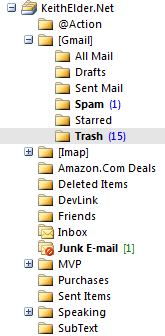
From within Outlook if I deleted one of these emails it would be removed from the Inbox because the label is removed on the server.  However it is not moved to the “Deleted Items” or “Trash” folder as with a normal IMAP server.  Let’s take a quick look at both interfaces and try to find the common threads.  Here is my current IMAP folder structure as seen within Outlook:

image

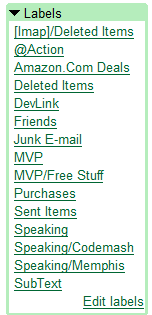
Here is how it looks within GMail.

image

The bottom line is labels in Gmail are merely folders in IMAP but there are some differences in how each interface handles mail.  Here they are.

Deleting Mail in Gmail
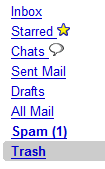
When deleting email within Gmail the default behavior is to move the item to the “Trash” folder. 

image

Default settings in Gmail state that any email placed in that folder will be permanently removed in 30 days.  Typically users will delete email from vendors and other third parties they know they aren’t going to keep around.  This keeps things neat and doesn’t eat up as much space.

Deleting Email in Outlook
When deleting email in Outlook using IMAP it is not moved to the “Trash” folder, the label of “Inbox” as previously stated is simply removed.  Let’s look at where it really goes though.  Notice in the Outlook screen shot above there are a set of folders underneath the [Gmail] folder.  These are the same ones seen at the top of Gmail.  As explained above if you deleted an email from within the Gmail interface, that email would be found in the “Trash” folder.  If you really wanted to keep the email you must drag and drop it into the “All Mail” folder above.  This folder is the archive.  Any email that is archived within the web interface is placed here so if you are searching for email, this is the folder you are going to use most of the time with IMAP.  Note:  If you click on “All Mail” from Outlook and you have a lot of email, prepare to wait while all of your email comes down.  This is why it is wise to label email ( or create folders within Outlook) as you process it.

As you can see there are several differences in how real IMAP servers work and how Gmail works.  There are no show stoppers but for some it may be confusing.  As long as you understand what the action you take means you’ll be ok.  Just remember when you create a new IMAP folder you are actually creating a label and when you delete something from the Inbox you are actually archiving it.  If you don’t want to permanently keep the email then you’ll be wise to drag it to the [Gmail]/Trash folder.  This way it will be around in case you need it for 30 days but will then get permanently deleted.  This is important because you don’t want to just delete everything because then you’ll wind up with a bloated archive of emails you really will never use.

Migrating My Email

After playing with Gmail’s IMAP support and enjoying how it deleted email for me and provided great spam support along with a lot of space I decided to make the switch.  In literally 10 minutes I was receiving emails and setup with Google Apps.  I chose to verify my domain by uploading a file to my domain and then logged into my site’s control panel and switched the MX record to point to Google.  A few minutes later my MX record was detected and I was getting my email.  Since I didn’t sign up for the $50 premier account I didn’t have the migration tools.  How was I going to get all of my email from my server to the Google server?

The first thing I did is research a few options but I found them to be complicated.  I then setup Outlook IMAP support as instructed.  Once I had IMAP support setup on Google’s server I did a quick test to see if my theory was correct (knowing how IMAP servers work).  I took a folder from my old account and dragged and dropped it onto the new account.  Sure enough mail started moving over.  The nice thing is I only had to drag the top level folder.  Everything underneath came along for the ride.  Problem solved.

image

Rinse and repeat.  Although this wasn’t as slick as some other tools that allow you to check all the folders you want to move, it still worked just as well since I was going from one IMAP account to another.  Within 15-20 minutes I had copied all of my email over to Google’s server.  Today I did the same thing for Ellen and migrated her email as well. 

I think I should point out that while both of us had web based email and spam filtering the big problem was the web interface used a random port which meant it was blocked by her work as well as mine.  Now email just sits within Gmail we can access it easier then before. 

Rusty Washer

Since using Gmail there has been one thing that bit me and that was dealing with IMAP mail on my mobile device.  Apparently there is a bug with Google’s IMAP support that doesn’t render HTML email to Windows Mobile devices properly.  It isn’t a complete show stopper since Google provides a mobile interface to mail which is another perk I forgot to mention.  Supposedly Google is working on a fix but not ETA as of yet.

Should You Switch Too?

Really there is nothing for me to gain if you do or don’t.  If you own your own domain you may want to consider switching if you haven’t already.  I feel that I’m a little late to the game but I really had to test to make sure the IMAP support worked as advertised.  The standard account is the one I went with because I am not an organization needing more services an API integration.  If I run out of space then I will considering upgrading my account but until then I plan on sticking with the free account.

Snow in Hattiesburg!

Posted by Keith Elder | Posted in General | Posted on 19-01-2008

1

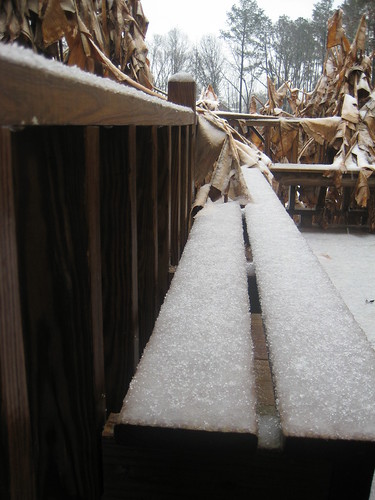
Deck seatingNo this is not an April fools joke because it isn’t April, it is January 19th, 2008.  This morning around 7:30 AM a buddy of mine called me and asked if we were in Michigan.  Still being groggy from waking up I said “What?”.  He then explained it was snowing outside.   I expressed my concern that he was probably still drinking from the night before but sure enough I walked to the bay windows in my home office and low and behold SNOW!

I immediately grabbed my camera and took a few pictures.  The last time it snowed in Hattiesburg, Ms was 22 15 years ago (according to my wife).  It is truly something that is a rare occurrence in this part of the US.  The snow is probably due to the really low temperatures the North is going through right now. 

The reason this is a rare occurrence is the fact that we are only 60 miles from the Gulf of Mexico.  For those of you geographically challenged here is a map showing the location.

image

How warm is it usually down here?  Well let’s just say that last year around this time a bunch of us went camping at the river and watched the AFC and NFC championship games in HD while cooking out on the grill and wearing shorts.  It was 72 degrees that weekend, sunny, and beautiful outside. 

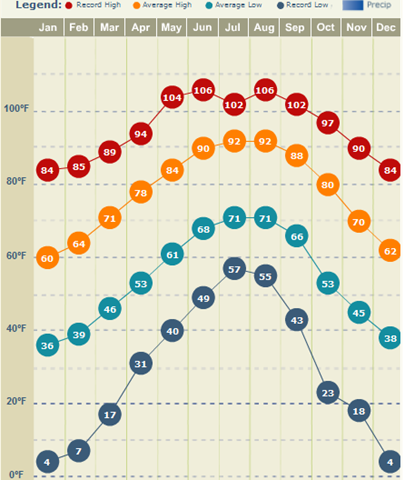
Here are some numbers to help cement this rare occurrence in your head.  As you can see in the following weather statistics according to http://www.weather.com our average low temperature in January is 36 degrees with an average high of 60 degrees.  Obviously too warm for snow. 

Don’t worry, the snow will turn to a slush before too long and will be gone.   Snow ice cream anyone?

image 

If you want to see all the pictures I took, they are posted on Flickr.

UPDATE: Corrected years since it snowed.

AT&T Blackjack II Windows Mobile Phone Review

Posted by Keith Elder | Posted in Uncategorized | Posted on 18-01-2008

61

image Like this article? Subscribe to my news feed at http://feeds.feedburner.com/keithelder

A few weeks ago I acquired a Samsung Blackjack II cell phone.  I have been using the phone for several weeks straight and it is time to tell the story of the Blackjack II.  The Blackjack II replaces an aging 8525 Pocket PC phone as well as an aging Cingular 2125 Smart Phone.  Unlike a lot of other reviews from magazines that spit out feature after feature I hope to provide you with a different perspective as a technologist / geek who has used the phone for several weeks.  Let’s get started.

Software Bundle – A
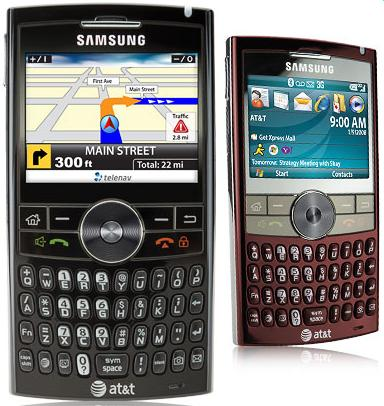
The Blackjack II comes in two colors as shown in the picture to the left, black and wine.  Wanting a different color than black I opted for the wine color.  So far no regrets on the the color choice but it is funny how many people have mistaken this phone for a Blackberry because of the wine color.  The Blackjack II runs Windows Mobile 6 and comes pre-bundled with a nice software bundle.  It includes an AOL, Yahoo! and MSN messenger application, XM Radio, Notepad, Smart Converter, Stopwatch, PDF Viewer, MobiTV, RSS Reader, Smart Search (for searching email, files, documents, etc), Excel Mobile, Powerpoint Mobile and Word Mobile. 

I added a few standard applications I use as soon as I turned it on.  This list included my RSA token generator needed for work along with CodeWallet Pro 6, Google Maps, Facade, Telenav, and Tiny Twitter (recommended by a friend).  The one application I desperately needed was Internet Connection Sharing but it wasn’t included on the phone.

Fixing the Internet Connection Sharing Problem – F before, A after
The Blackjack II does not bundle Internet Connection Sharing which is apart of the standard Windows Mobile 6 application set.  For those of us on the go and traveling this is a must have program to connect our laptops to the Internet while sitting in the airport or other locations outside of the office.  Why it was left off I am not sure.  I was concerned at first about not having this because this was a deal breaker for me.  A few searches later and I had found out there was already a hack to provide the application.  To setup Internet Connection Sharing for the Blackjack II follow these steps (reprinted from the Howard forums).

1. Download the two files below:


2.  Transfer both of the files to the “My Documents” folder on the phone.  Do not copy to your storage card FYI.
3.  Install the secpolicies.cab file but using File Explorer located in the Applications folder.  Reboot.
4.  Install the BJ.WM6.ICS.Enable.cab file using File Explorer located in the Applications folder.  Reboot.
5.  Using File Explorer located in the Applications folder navigate to the “My Documents” folder and click on the Certs.cab file and reboot.

After following these simple steps “Internet Application Sharing” should now be visible within the Start Menu of the phone.  Connect the phone to a laptop or desktop computer using the provided USB cable, launch the application and press connect.  Your computer should now be online using the 3G or Edge services from the Blackjack II. 

New Jog Wheel – A-/B+
One of the new features of the Blackjack II is the jog wheel.  The wheel is located in the center of the phone and allows for easy navigation of menus, email, web browsing and much more.  Having had phones with a jog wheel on the side of the phone I have to say that having it on the front is the way to go.  It is natural and allows for easy one handed use.  There are times when the jog wheel feels sluggish though.  I am not sure if this is a programming sensitivity issue or hardware.  To clarify what I mean by sluggish there are times when I will move the wheel just a quarter turn and nothing happens, nothing moves.  It is like you have to move the wheel a lot farther than expected which leaves a sluggish impression sometimes.  I think this could be fixed with a possible registry hack although I haven’t found one yet. 

The only other complaint I have about the jog wheel is I haven’t yet found a hot key that I can press to scroll a page at a time or to select multiple emails for deletion.  When viewing web pages this is really important or when scrolling through 100 emails in the Inbox.  I remember the Blackberry 7290 I had years ago had this feature where a certain key could be pressed and if the jog wheel was moved it would scroll in pages or select multiple lines.  I miss it.

Keyboard / Navigation – A-
I’ve owned a lot of integrated keyboard phones over the years and I find the keyboard on the Blackjack II easier to type on than the previous Palm Treo versions I have owned but not as good as the Blackberry or the slide out keyboard on the 8525.  Of course the main reason for this is the keys are smaller on the Blackjack to save space.  Because the keyboard is smaller it makes the device more portable so this is a trade off.  For my purposes I like the smaller form factor so the rating gets bumped back up.  With this type of phone consumers want the device to function as a phone first and a messaging device second.  In this regard it accomplishes what it sets out to do.

One of the nice features of the keyboard is the built-in hot keys on the front to launch email or the camera.  On previous Windows Mobile devices I’ve owned I’ve always felt there were too many buttons on the sides.  The Blackjack II is very simple in the fact that it only has two buttons not located on the front of the device:  Power and Volume.  This makes the device more one hand friendly.  A big plus over phones like the 8525.

GPS – B+
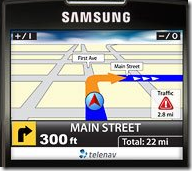
image The Blackjack II has an integrated GPS SiRF III chip.  This means the phone is capable of being a real GPS not a simulated GPS using cell towers.  Available for $9.99 a month users can select to download and install Telenav on the Blackjack via a program provided out of the box.  I chose to enable this feature since I don’t have a portable GPS and I because of the fact I had removed the $10 fee for push to talk on my account I never used.  The only reason the GPS gets a B+ rating is due to the speed of locking onto satellites while moving.  I had a couple of instances whereby it took a long time to get a signal because I was moving.  As soon as I stopped it locked on.  Once Telenav is setup the Blackjack II speaks directions and offers a lot of the same functionality a regular GPS system offers like finding places nearby, gas prices, favorite locations, hot spots and more.  Telenav is truly a remarkable application and I have been impressed using it.   

As I mentioned earlier I installed Google Maps on the phone as well.  I mainly wanted to try Google Maps with the GPS built into the phone.  I selected the option to enable the GPS option in the menu and once the GPS locked on Google Maps was tracking me as I drove down the road.  While not anywhere near the features of Telenav Google Maps can provide basic GPS functionality.  I found myself launching Telenav much more often since it included spoken directions.  While driving it makes all the difference in the world to hear when you are supposed to turn rather than constantly looking down.  Not to mention being more dangerous.  If you decide to buy this phone and travel a lot, pay the $10 for Telenav, it is worth it.  If you just want to occasionally  do some GPS directions for fun you could probably stick with Google Maps.

Video Share – D
The phone supports a feature called Video Share.  This allows you to conduct one-way video calls.  At $9.99 for 60 minutes of use I don’t suspect many people are going to use this feature.  It is the first phone to support this option from AT&T but the cost is more than likely going to keep 99% of the population from using it.  The other problem is the phone on the other side must support it as well.  So unless you are a road warrior and your spouse has the same phone it isn’t even looking into.

Camera – B
The 2.0 mega pixel camera included with the Blackjack II is decent but will not break any land speed records.  The camera is very sensitive to movement.  I took several photos where I thought I was being extremely still.  But when viewing the picture it turned out to be very blurry.  This may be due to the lengthy shutter speed of the camera.  Once the button is pressed it takes several seconds for the picture to get taken which requires you to keep still longer.   The video capability of the camera will work well enough to post a video to YouTube if needed by the way.

Bluetooth Hands Free Driving – A+
While not a feature of the phone itself I use Bluetooth to get hands free driving all the time.   My Chrysler Aspen has a system called UConnect which supports Bluetooth hands free driving.  Once the phone is paired with UConnect and someone calls while driving a simple press of the UConnect button located on the review mirror answers the call.  People I have talked to say they can’t tell the difference either way and the nice thing is their voice comes across over the speakers.  If a CD is playing in the player when a call comes in the CD is paused automatically while the call occurs. 

There are times when driving with passengers that you don’t want them eaves dropping on the conversation (could be a client or a co-worker).  The Blackjack II has the option to enable an auto pop-up feature which I have found to be the extremely useful to avoid these situations.  Once it detects the hands free headset it pops a dialog to ask if you want to connect or not.  Previously with my 8525 and my 2125 if the truck was running, calls went through UConnect. 

Note:  Previous phones I have had did not pair very well with UConnect but the Blackjack II synced up quickly with no problem.

One Handed Usability – A+
The Blackjack II is extremely easy to use with one hand.  Of all the one handed keyboard devices I’ve used the Blackjack II takes the prize.  It is due to the small form factor and the jog wheel being on the front of the device.  Even with one hand it is easy to navigate calls, email and web surfing.  Once you get used to where applications are in the menus it becomes a quick series of keys to launch one.   The shortcut keys on the front to launch email, camera or turn the phone to silent make it easy to navigate with one hand.

Overall Rating- A-
As far as an overall rating I give the Blackjack II an A-.  I feel that I am well connected because of the 3G data support, built-in GPS, and direct push email.  It is great to be back to a form factor that I truly feel is the best of both worlds (8525 / 2125).  The full QWERTY keyboard makes it a snap to reply to text messages, emails, Twitter and surf the web.  It isn’t anywhere as bulky as the 8525 nor as cumbersome to operate as the 2125 (no keyboard).  For me the Blackjack II combines the best of both worlds and offers a geek like me a good balance of power but in a phone that I don’t feel like I’m carrying around a brick.  My wife’s cell phone plan is up for renewal in February, I am considering getting her one and enabling GPS on it with Telenav so when she travels she doesn’t have to worry about directions and getting lost.